
To record a Keynote presentation, decide what the viewer needs to see besides the slides. A narrated deck can stay inside Keynote’s recording workflow. A lesson that switches to a browser, shows a software action, or needs adjustable camera moments may be better planned as a screen recording. Neither route fixes an overloaded slide. Start with the story and choose a capture method that keeps the useful parts visible and editable.
Before you record
- Keynote documents recorded slideshows with narration and video export.
- A presenter display is not the same thing as the audience’s slide view.
- Test the real slide-to-demo transition before the complete session.
- Review the exported file, including the opening and final slide.
Choose how to record a Keynote presentation
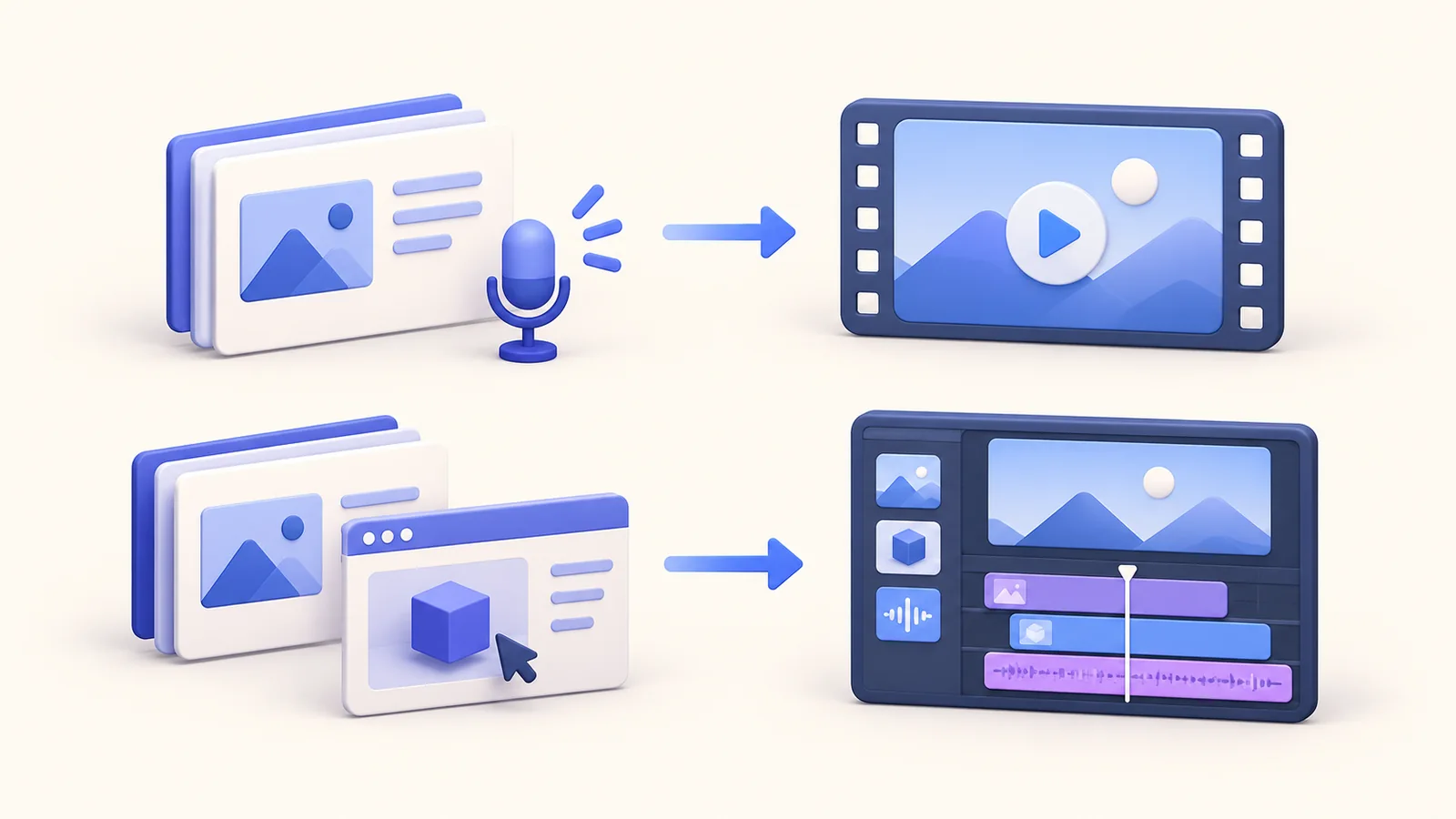
Apple’s current Keynote guide describes recording a presentation with voiceover, replaying it, and exporting it as a video. For a slide-only explanation, that is a reasonable starting point. Use a small copy of your deck to test slide advances and playback. Confirm the output you actually need before adding a separate recorder merely because you already have one.
When the lesson includes another application, plan that transition as part of the capture. ScreenTale can record a display, window, app, or area with microphone and camera where configured. Its editor supports later changes to framing, zoom, and camera layout. This gives you options for an edited lesson; it does not mean it controls Keynote’s slide timing or records every view automatically.
Keep presenter notes out of the audience view
A rehearsal should show you exactly which surface reaches the recording. Notes, next-slide previews, private comments, and a countdown can be useful to the presenter but confusing or sensitive for viewers. Check the capture while Keynote is actually presenting. A selected window before the slideshow starts may not prove what remains selected after a presentation-mode change.
Do not rely on a presumed application layout. Open the exported sample and inspect its edges, title bar, and transitions. If you use a separate display for notes, test the actual display choice. Prepare a clean deck with fictional or approved data. Privacy regions can help review selected intervals, but reducing exposed information at the source remains the simpler preparation.
Build one continuous explanation across slides and demos
Write a sentence that connects each slide to its demonstration. Explain the question on the slide, show the action in the application, and return with the result. Keep enough time for the viewer to read the conclusion. A sudden jump between a deck and a dense interface usually needs context more than it needs another transition effect.
Place the camera where it contributes presence without covering a chart or button. ScreenTale lets you revise camera presentation and other effects after capture, so review them together. Use the product workflow to plan editable elements, then test a representative minute with the actual slide and demonstration sizes.
Export a sample before finishing the whole deck
Choose a section with the smallest important text, a slide change, and an application switch if you have one. Listen to narration at ordinary volume and inspect the movie at the size viewers will use. Check whether animations and pauses convey the explanation. Fix readability in the deck or capture before trying to compensate with higher output settings.
Keep the editable deck and recording project as well as the delivery file. Later slide changes can affect narration, captions, and the demonstration around them. Check the whole revised sequence rather than only the replacement slide. The teaching workflow is useful when a presentation will become a lesson you maintain over time.
Official references checked on 12 October 2026
Make the next recording clearer. Download ScreenTale if your next presentation needs editable screen demonstrations alongside narration.



0 comments
Comments are currently closed for this article.