
Your voice sounds twice, although you spoke once. Echo in screen recordings often starts with the signal path: speakers feed a microphone, the same sound enters two sources, or playback is happening twice. Begin with a short test and change one route at a time. ScreenTale supports microphone and system-audio capture, but selecting both does not guarantee a clean mix. The useful question is where the unwanted second copy first appears.
Before you record
- Listen to the exported file in one player, with other playback stopped.
- Use headphones to test whether speaker sound reaches the microphone.
- Test the microphone and system audio separately before combining them.
- Keep the original project; diagnose before applying broad edits.
Find where echo in screen recordings begins
First distinguish the saved file from what you hear during capture. Close other players and listen once to a short export. If the file is clean but monitoring sounded doubled, changing the recording can damage a result that was already fine. If the export contains two voices, the duplication belongs somewhere in the captured sources or their mix.
Make a small matrix: microphone only, system audio only, then both. In each test say one phrase, leave a pause, and play one brief system sound when appropriate. Name the samples clearly. Comparing those three files gives you evidence; changing several switches at once gives you a different configuration without showing which change mattered. If system audio alone already contains the doubled sound, investigate that source before blaming the microphone or moving it around the room.
Break the speaker-to-microphone route
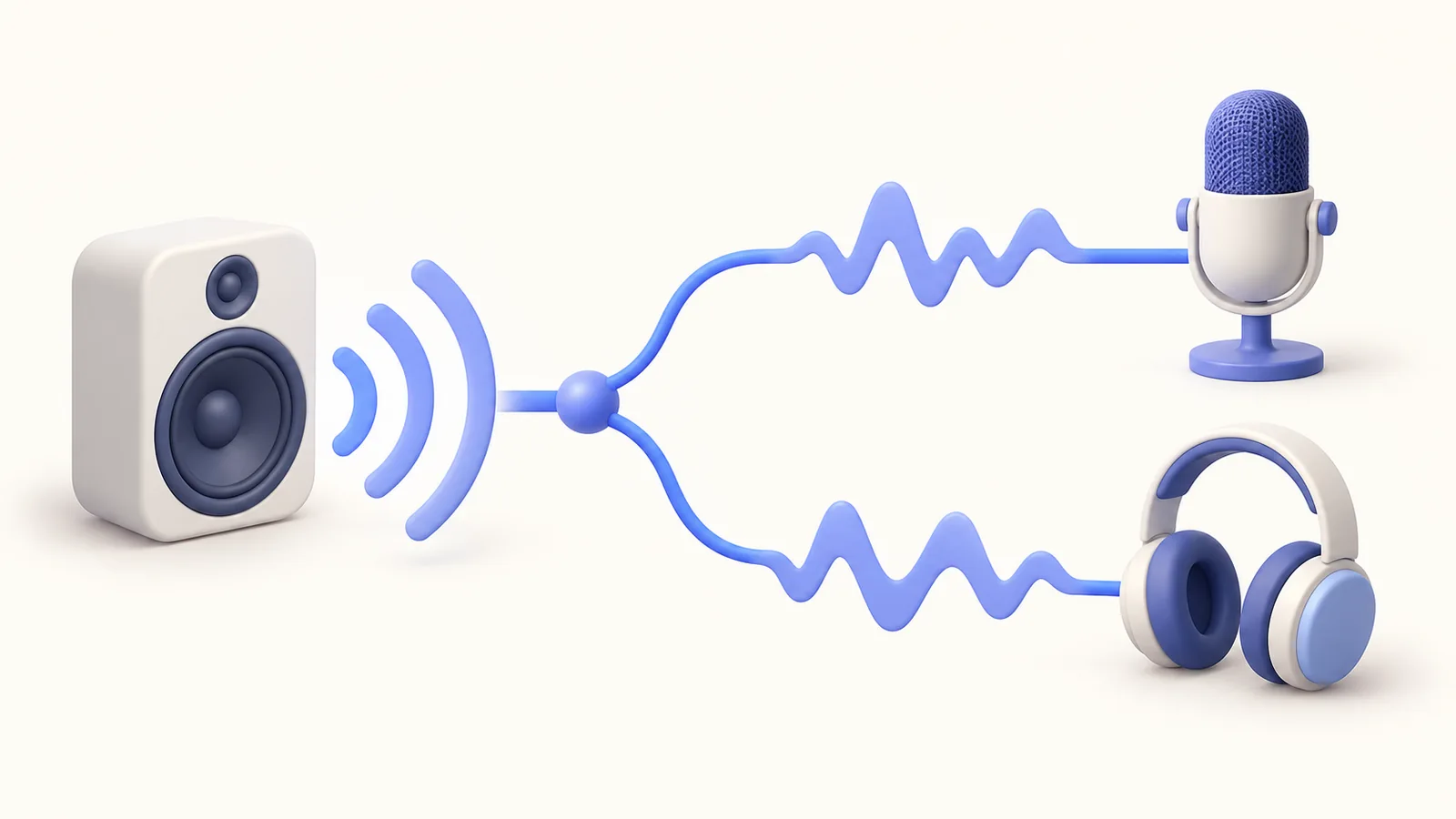
A microphone can capture sound coming from the Mac speakers while the recorder also captures that sound digitally. Try headphones for the test, or stop the speaker playback while recording voice alone. Keep the microphone position consistent. A hollow room sound may be acoustic reflection rather than a duplicate digital track, so note whether the second sound is a clear delayed copy.
Check the input device before adjusting volume. Apple documents device selection in System Settings → Sound → Input; a connected display, headset, or other microphone may be involved. The recorder can have its own source selection, so inspect that too. A system default alone does not prove which device a particular capture used.
Treat level, routing, and room sound separately
Reducing volume may make an echo quieter while leaving the cause intact. Conversely, distorted loud speech is a level problem and may require a lower input level or a different microphone distance. Test a normal sentence and a louder one. Avoid promising that noise processing can reconstruct clipped audio or separate identical overlapping voices after the fact.
When a project exposes separately captured audio layers, listen to them individually before deciding what to mute or trim. Keep narration connected to the visible action. ScreenTale’s editable audio and timeline workflow helps you review presentation, but it does not replace a clean capture or guarantee automatic echo removal.
Repeat the test with the real lesson setup
After finding a working route, test the actual combination of application, microphone, camera, and headphones. Connect the devices before the test and listen again after reconnecting them. Record an ordinary spoken explanation over the system sound you genuinely need. A silent desktop test cannot verify the setup of a lesson that plays videos or demonstrations.
Write down the selected input and which audio sources were enabled. Keep a short reference sample with the project. Before a long session, reuse that test instead of trusting the last successful recording. For a broader setup sequence, follow the screen and audio recording guide and verify its exact route against your machine.
Official references checked on 12 October 2026
Make the next recording clearer. Download ScreenTale and test one short capture with the audio sources your lesson needs.



0 comments
Comments are currently closed for this article.