
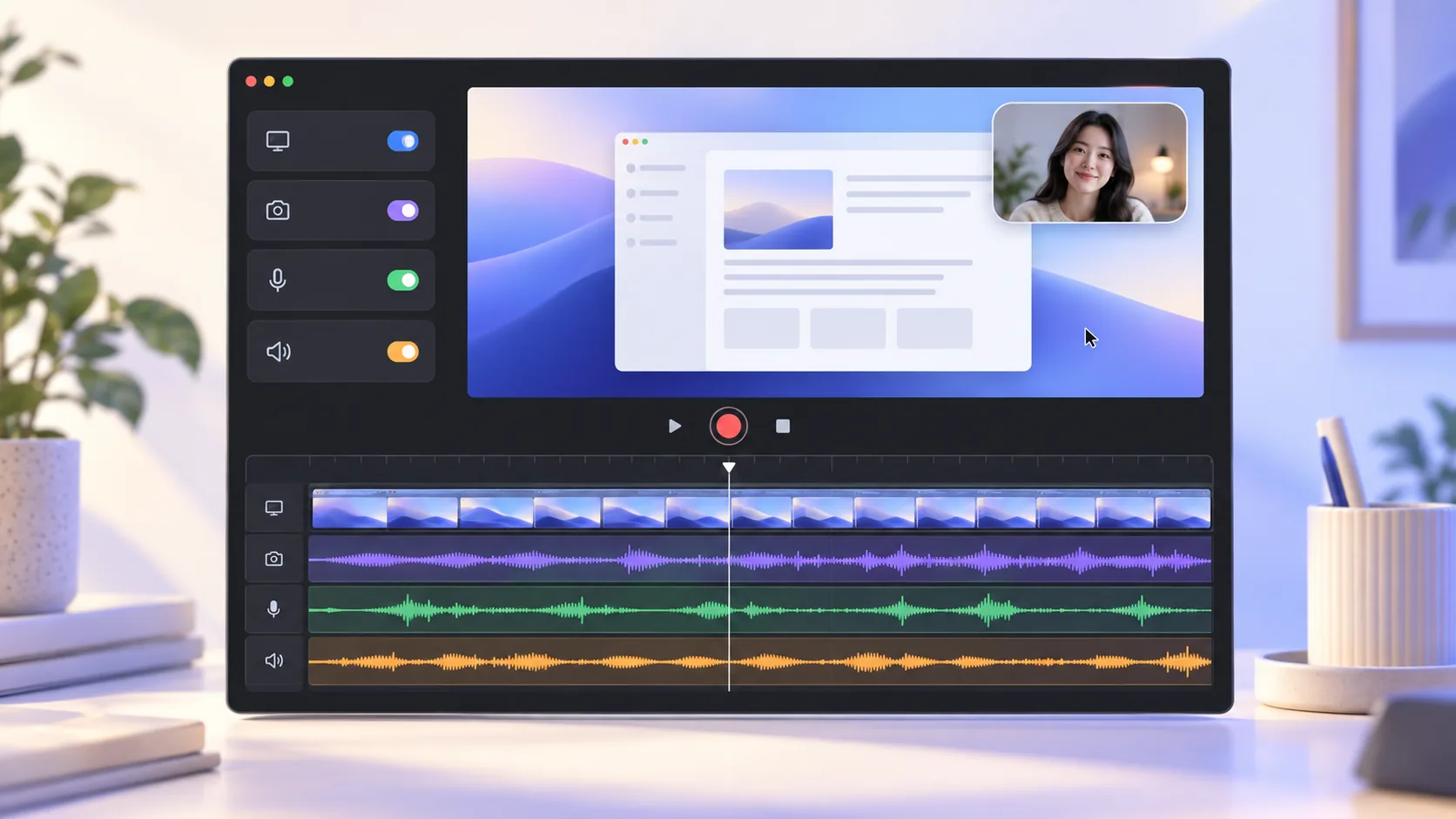
To record screen and system audio on Mac for a useful tutorial, the screen is only one ingredient. Viewers may need the app sound, your explanation, and your camera at the same moment. Capturing them together is convenient; keeping control of them afterward is what saves the recording when one source is too loud or poorly placed.
Before you press Record
- Choose the smallest capture target that still contains the complete task.
- Use headphones when system audio could leak back into the microphone.
- Make a ten-second test and listen to it—meters alone cannot tell you whether speech is clear.
- Check the camera background for names, notifications, documents, and reflections.
1. Decide what the viewer actually needs to see
ScreenTale can capture an entire display, one window, one application, or a custom area. A full display preserves context but also exposes more notifications and unrelated windows. A single app or area creates a cleaner frame, although menus or popovers that open outside the region may be missed.
Walk through the task once without recording. Note where dialogs appear and whether you switch applications. Then choose the narrowest capture mode that still tells the complete story. Close private tabs and enable a Focus mode before the final take.
2. Record screen and system audio on Mac together
System audio is the sound produced by the Mac: a video clip, application feedback, music, or the other side of a call where recording is permitted. Enable it when that sound is part of the explanation. Leave it off for silent interfaces so you do not collect unnecessary alerts.
Set playback volume before the test, then speak over the loudest part. The goal is not maximum meter movement; it is intelligible narration with enough system sound to understand the example. Always respect consent and service rules when recording other people or protected media.
3. Make the microphone easy to understand
Select the intended microphone instead of trusting the current macOS default. Keep it a consistent distance from your mouth and reduce room noise before reaching for processing. A quiet room and stable position usually improve a lesson more than aggressive filters.
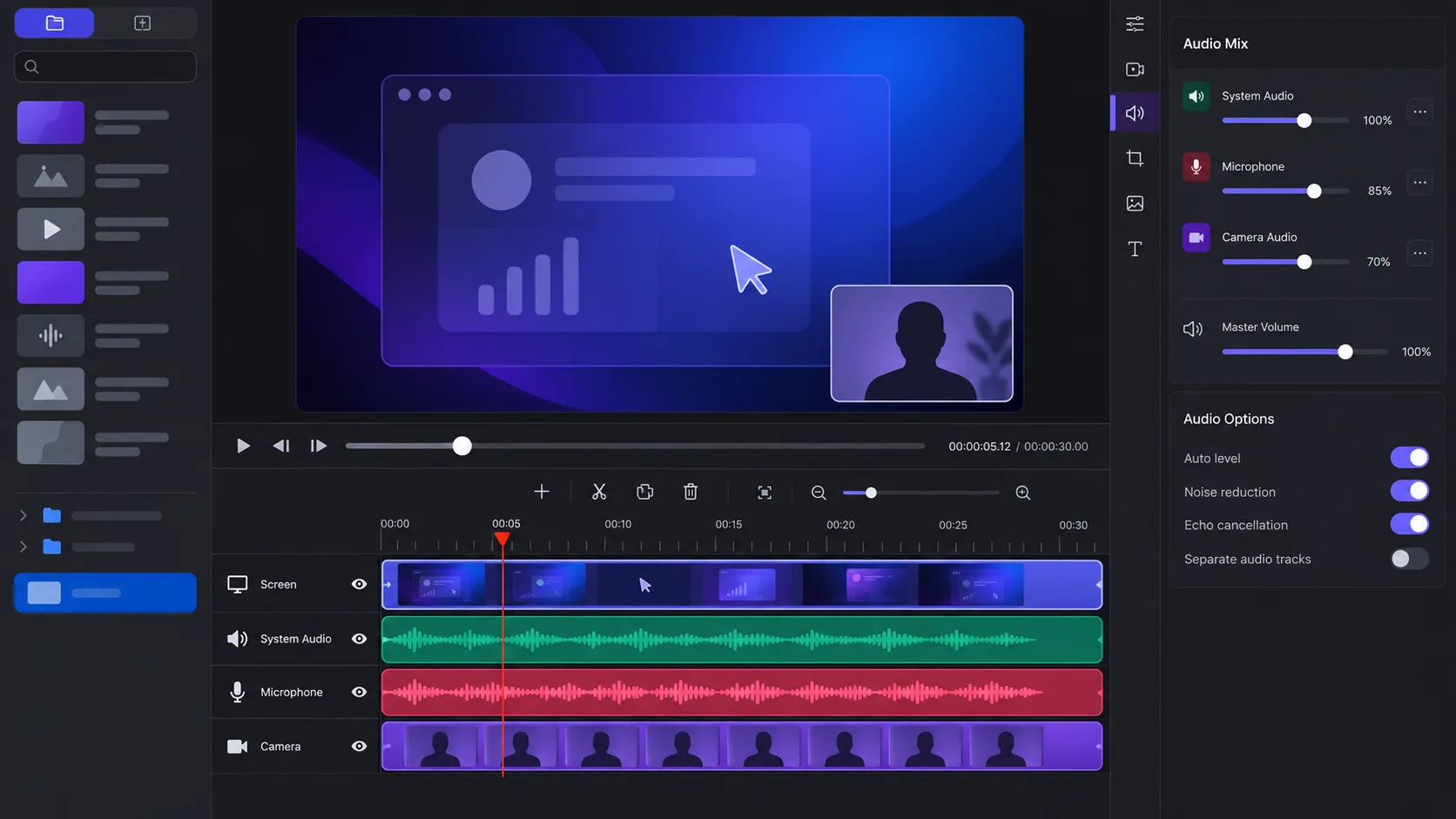
Record one sentence at your normal teaching volume, play the test back, and listen through ordinary speakers as well as headphones. If speech is clear there, viewers on laptops have a better chance too. ScreenTale’s Audio controls let you rebalance recorded sources later, but a clean input remains the best starting point.
4. Treat the camera as an optional layer
Camera can build trust at the introduction, reaction, or conclusion, yet it does not need to cover the interface for the entire tutorial. In ScreenTale you can position, crop, style, resize, and show or hide camera moments after recording. That makes one take useful for both a face-led opening and a screen-led explanation.
Place the camera where it will not cover persistent controls. Look for windows, mirrors, badges, whiteboards, or screens that reveal private information. If the background cannot be made safe, record without camera; clarity is more important than following a format.
5. Correct the mix and composition after capture
After recording, remove dead time and obvious mistakes before doing detailed audio work. Balance narration against system sound at the loudest examples. Move or hide the camera where it blocks content. Then adjust framing, zoom, cursor, and background with the final timing in place.
Watch the exported file once from beginning to end. Check lip sync, transitions between loud and quiet system audio, camera changes, and whether the pointer remains visible. A timeline preview can feel familiar enough that your brain fills gaps an audience will notice.
A repeatable recording checklist
Use the same short checklist for every session: Focus mode on, private windows closed, capture target confirmed, system audio intentional, microphone tested, camera background inspected, and storage space available. Repetition removes decisions when you should be thinking about the lesson.
ScreenTale is designed to keep these sources manageable in one creator workflow. Record a short section first; once its edit and export work, continue with the longer take.
Test all four sources in ten seconds. Download ScreenTale and use the full 30-day Launch Pass before recording the complete lesson.



0 comments
Comments are currently closed for this article.