
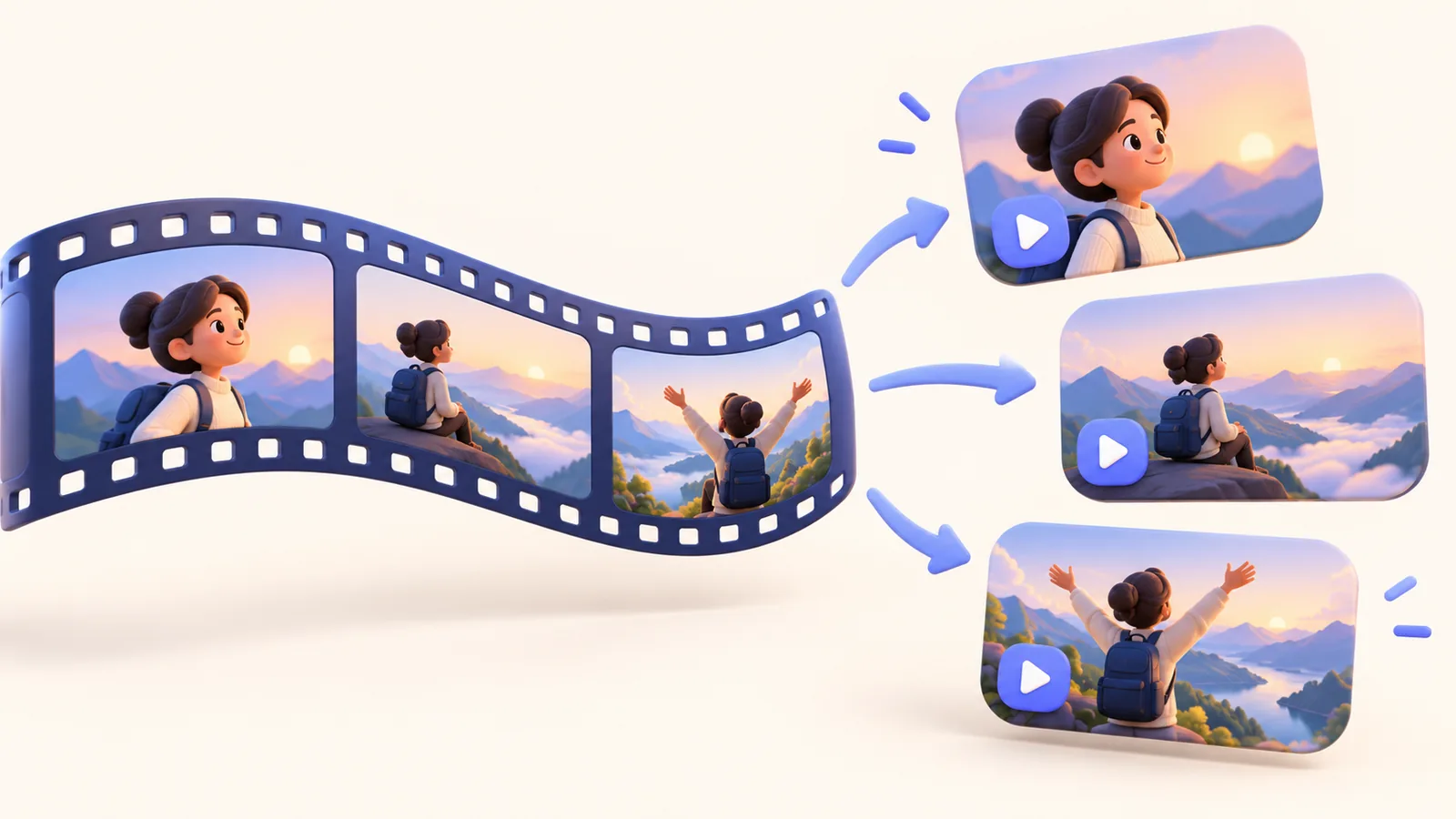
Turning a tutorial into short clips works when each clip becomes a complete answer. A random minute from the middle often begins with an unexplained pronoun and ends before the result. Select a smaller question, restore the context it needs, and keep enough evidence to verify the outcome. ScreenTale’s editable timeline and presentation effects support the revision. They do not decide where a self-contained explanation starts or make an automatic highlight selection on your behalf.
Before you record
- Choose one question for each clip instead of one fixed duration.
- Restore any prerequisite that the longer lesson introduced earlier.
- Check narration, captions, zoom, and camera together after a cut.
- Keep the full project and create separate delivery revisions.
Split a tutorial into short clips at meaningful boundaries
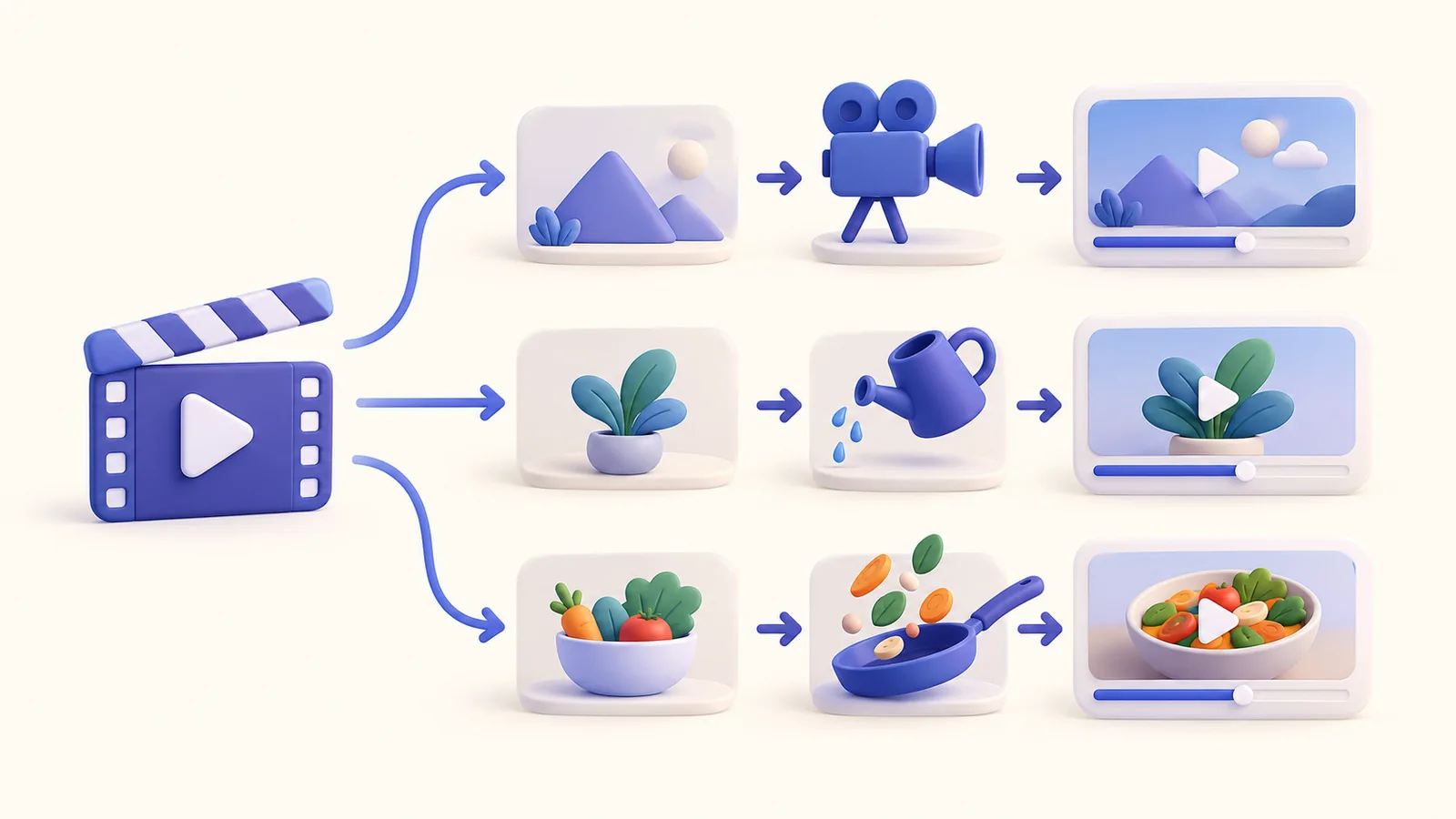
List the questions the long lesson answers. One might explain how to find a setting, another how to recognize a successful result, and another how to recover from a common mistake. Those questions suggest useful clips. Chapter timestamps are a starting point, but a chapter can still depend on context from an earlier section.
For each candidate, write one opening sentence and one visible finishing condition. If you cannot define both without replaying half the original lesson, the candidate may be a teaser rather than an instructional clip. That can be a deliberate choice, but describe it honestly and link the complete explanation. Do not label an unfinished extract as a complete tutorial.
Restore context before removing more time
Check references such as this file, the previous setting, or the account we created. A viewer who sees only the clip cannot resolve them. Add a brief spoken or written introduction, show the relevant starting state, or retain a few extra seconds from the source. Make the prerequisites available in the accompanying description when they do not need screen time.
Remove repeated setup only after preserving what the new viewer needs. Shortening pauses can tighten delivery, but a reading pause is part of the explanation. Review the silence-cutting workflow before treating every quiet interval as disposable. The smaller lesson should remain understandable at normal playback speed.
Reframe for the actual destination
A vertical crop can remove the button that causes the result or the column label that makes it meaningful. Build a composition around the action, then check the beginning and end of every zoom. Move or omit the camera where space is tight. A shorter duration alone does not make a landscape recording readable on a small phone.
ScreenTale keeps framing, camera presentation, zoom, and annotations adjustable after capture. Use those controls to revise the short version while preserving the source project. Follow the aspect-ratio guide for the composition decision. There is no promise that one crop will serve every platform, interface, or subtitle layout equally well.
Check the exported clip as a separate product
Play the short export without the long lesson beside it. Listen for cut-off words and unexplained references. Check subtitle boundaries, the first visible frame, and whether the final action has time to settle. A narration edit can make a formerly accurate caption wrong. An image that looked fine in the full lesson can appear abruptly when it becomes the opening.
Save a clear revision name and keep the source project separate from the delivery file. Include a link to the complete lesson when it helps the next question. If the software later changes, review both versions: fixing the long lesson does not update a previously exported short clip. Treat each published output as its own artifact to maintain.
Make the next recording clearer. Download ScreenTale and turn one complete task from your next lesson into a separate, reviewed clip.


0 comments
Comments are currently closed for this article.