
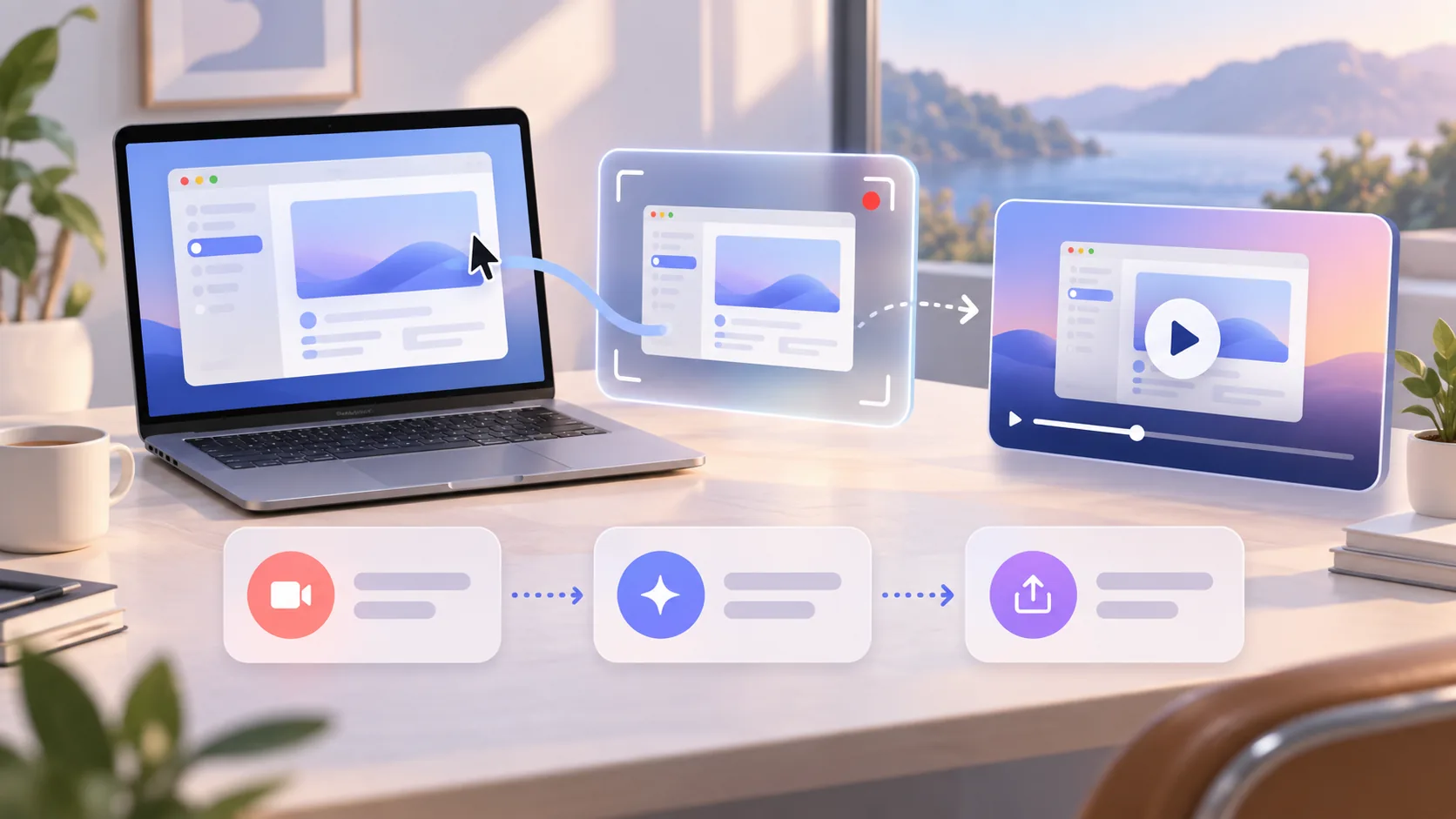
A product demo is not a tour of every menu. It is proof that one person can move from a recognizable problem to a useful result. When you record a product demo on Mac, the difficult work happens before capture: choosing that promise, removing private context, and deciding which action the viewer must remember. A focused recording is easier to narrate, edit, and trust.
A compact product-demo formula
- Write one sentence that names the viewer, problem, and result.
- Prepare a synthetic project with no customer, account, or notification data.
- Record the shortest path from starting state to visible proof.
- Edit attention after capture, then export and review at normal size.
1. Define the result before opening the app
Start with a sentence such as: “A course creator can turn a raw screen capture into a framed lesson without leaving the Mac.” That sentence gives the demo a boundary. It tells you which starting state to show, which action deserves time, what counts as proof, and which tempting features belong in another video.
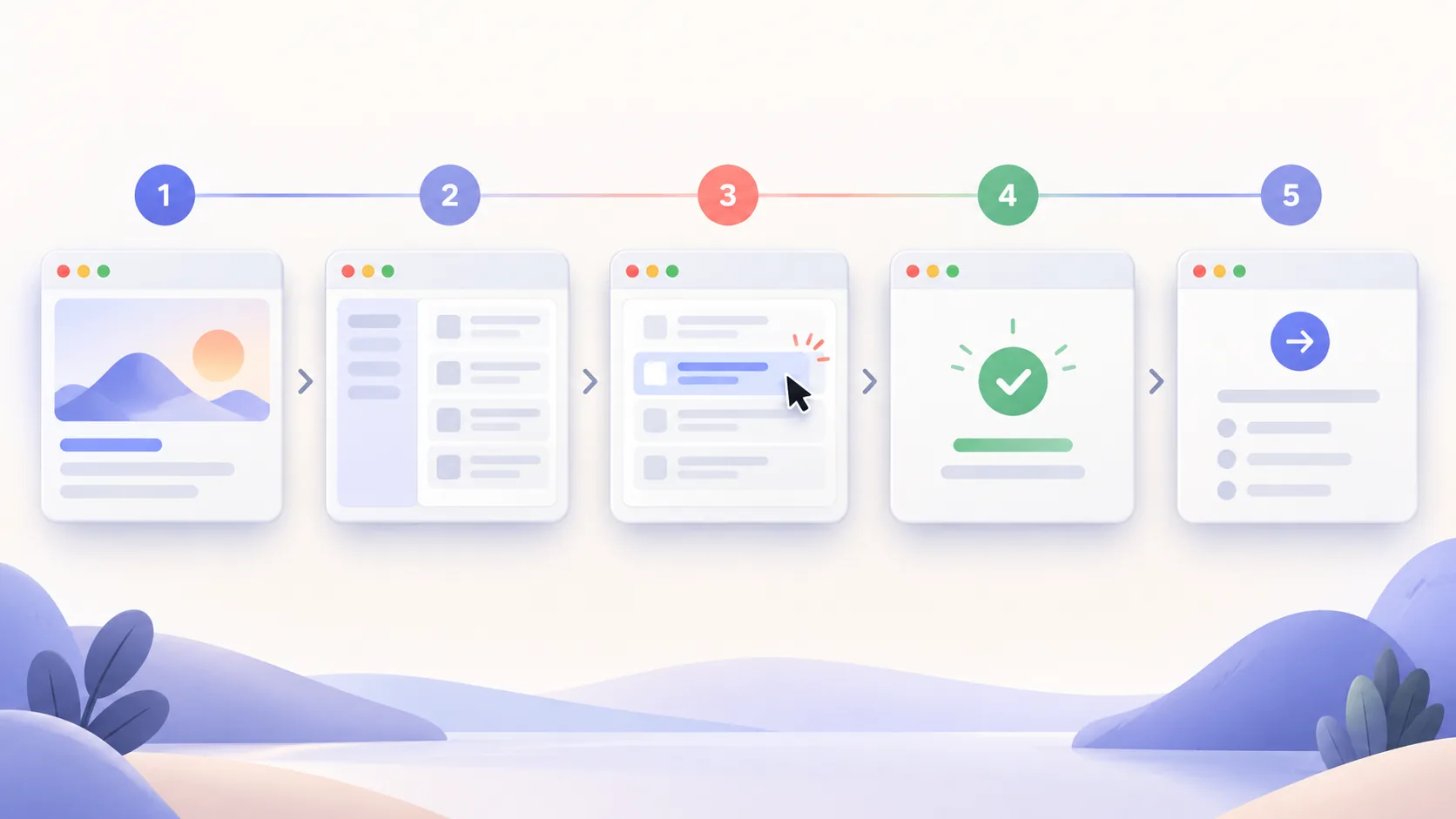
Now outline five beats: the problem, the clean starting state, one meaningful action, the visible result, and the next step. Each beat should earn its seconds. If a viewer cannot describe the result after watching, more polish will not rescue the story. Remove setup that can happen before recording and explanation that can become a caption or article.
2. Build a recording-safe product environment
Use a sample account and a project created for the demo. Replace real names, email addresses, API keys, file paths, support messages, analytics, and purchase data. Close unrelated apps, hide notifications, and select one app or window when the rest of the desktop adds no value. A synthetic example is not dishonest when the workflow and result remain real.
Set the app window to a size that leaves interface labels readable after export. Increase editor or browser text where necessary, but avoid a one-off layout that no customer sees. Record a ten-second test with system audio, microphone, and camera settings, then play it through laptop speakers. Fix a noisy input before committing to the full take.
3. Record the product demo in recoverable sections
Record the opening, main action, and result as distinct mental sections even when they live in one take. Pause briefly between them. Those quiet gaps create natural edit points and let you replace a weak explanation without rebuilding the entire performance. Keep the cursor still while speaking about a concept; move it only when the viewer should follow an action.
Name buttons and outcomes before clicking instead of narrating every pointer movement. Let the interface visibly respond, then explain why the change matters. If something fails, stop, reset the sample state, and repeat only that section. A clean demonstration is not pretending mistakes never occur; it is removing mistakes that teach nothing.
4. Edit attention, not the truth
Begin with structure: trim dead time, choose the best section, and confirm narration. Then add zoom only where text or state would otherwise be hard to read. Refine cursor motion, move the camera away from controls, add a background or frame that supports contrast, and use one annotation when the interface alone cannot make the point. Decoration comes last.
ScreenTale keeps these presentation decisions editable after capture, so you can correct framing, zoom, cursor, camera, keystrokes, annotations, and audio without recording the product action again. Export the real delivery format, watch it once without pausing, and ask whether the promised result appears quickly enough. If not, shorten the path rather than adding another effect.
Demonstrate one promise completely. Try ScreenTale with a three-minute product story during the 30-day Launch Pass.


0 comments
Comments are currently closed for this article.