
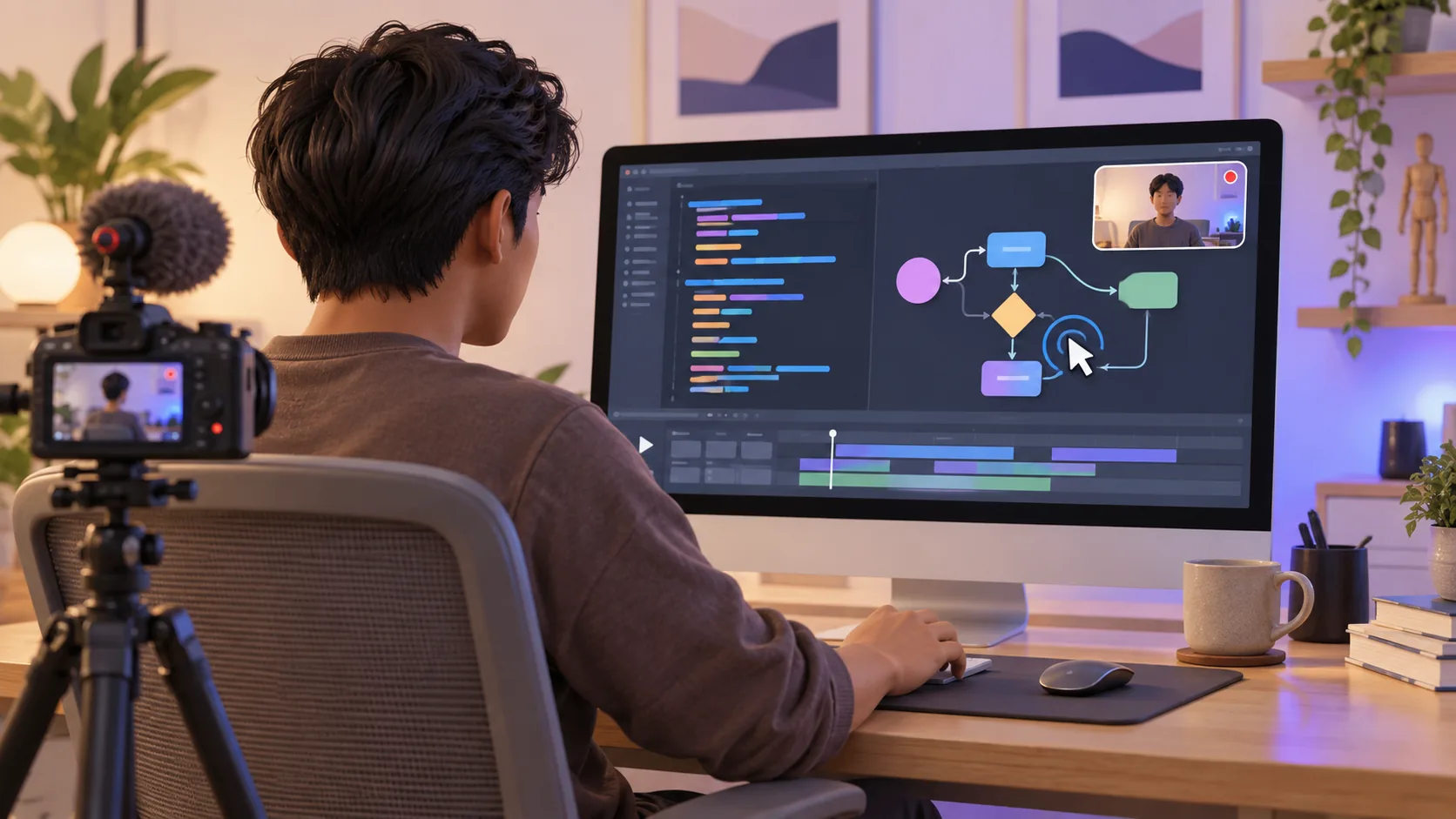
I record AI and coding tutorials on Mac from two perspectives: a YouTuber trying to hold attention and a former programming instructor trying not to skip the step a beginner actually needs. The tools matter, but the most reliable improvement is separating the lesson into a result, a reason, and a repeatable path.
My compact tutorial formula
- Show the finished result first so viewers know what they are building.
- Use a clean demo repository, fake credentials, and a predictable editor layout.
- Record short sections, then edit attention and pacing after capture.
- Keep code large enough to read on a laptop and verify the export on a phone.
1. Start with the learning outcome, not the tool
“Today we will learn AI” is too broad. “By the end, this command-line tool will summarize one Markdown file and show a recoverable error when the API is unavailable” gives the lesson a finish line. I write that outcome in one sentence, then list only the concepts required to reach it.
The opening shows the result for ten to twenty seconds. That preview answers the viewer’s first question—“is this relevant to me?”—and gives every later detail a place. It also reveals whether the demo is stable before I record the explanation.
2. Build a recording-safe coding environment
I create a small demo project with synthetic data, remove environment files from view, clear terminal history, close personal tabs, and use placeholder names. API keys come from an environment variable and are never printed. Notifications are disabled, and the editor shows only the files needed for the current section.
Increase code and terminal font size before capture rather than relying on a permanent zoom. A viewer should read the current line while still seeing enough surrounding function to understand context. High contrast and a quiet theme matter more than making the setup look fashionable.
3. Record AI and coding tutorials on Mac in sections
I separate introduction, setup, first working version, explanation, failure case, and conclusion. A mistake inside one section then costs a minute rather than the entire lesson. Short sections also make it easier to move from concept to code without long silent waits.
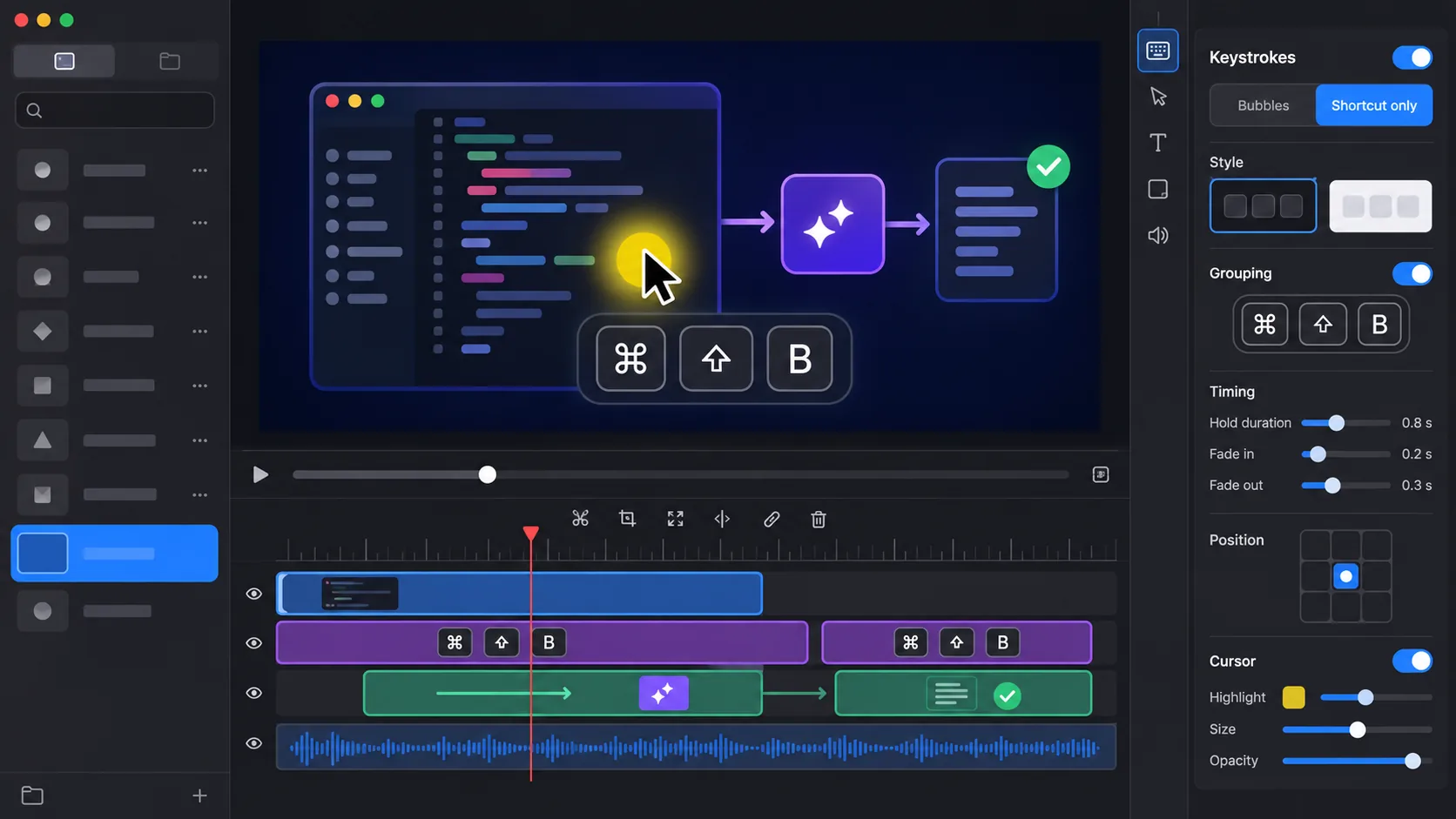
ScreenTale can record the app or selected area with microphone, system audio, camera, cursor, and optional keystrokes. I enable only the signals that teach something. Camera is useful for the welcome and conclusion; code usually deserves the full frame during implementation.
4. Use zoom and keystrokes as teaching aids
Zoom is useful when moving from project structure to one function, or from a full response to a specific field. It is not useful for following every cursor twitch. I keep a stable frame through a complete thought, then transition when the subject changes.
Keystroke overlays help with shortcuts such as opening search or running a command. They are off by default in ScreenTale and stop during Secure Input. Even then, I avoid capturing actual secrets and review overlays before export. A teaching shortcut is worth showing; a password never is.
5. Keep one honest failure in the lesson
AI examples often fail because a model response changes, a rate limit appears, or an assumption about structured output is wrong. Hiding every failure makes a tutorial look smooth and leaves the learner helpless. I keep one representative failure, explain the cause, and show the recovery path.
What I remove are accidental waits, repeated typing, and errors unrelated to the concept. Split and speed controls tighten those sections; marks keep the timeline organized. The final video should be honest about the system without making the viewer watch every minute of debugging.
6. Review like a beginner, export like a publisher
On the first review, I ask whether a beginner can explain why each step exists. On the second, I check technical facts, package versions, links, and the failure path. On the third, I look only for privacy leaks, unreadable text, abrupt audio, and motion that distracts from the code.
Export at a resolution that keeps text crisp, then watch a sample at normal YouTube size and on a phone. ScreenTale’s developer workflow helps reduce mechanical editing, but the final responsibility is still to teach one accurate idea at a humane pace.
Record one small, complete lesson. Use the 30-day ScreenTale Launch Pass and start with a safe demo project.



0 comments
Comments are currently closed for this article.