

A name is covered in the opening frame, then the window moves and the name appears again. Protecting sensitive information in screen recordings requires more than placing one rectangle. Reduce the data you capture first, cover the necessary region for the whole interval, and inspect the exported result. ScreenTale provides Solid Cover and Blur for selected areas and times; those tools support review rather than replacing it.
Check more than the still frame
- Use sample data and a smaller capture surface before adding effects.
- Prefer an opaque Solid Cover when the underlying text must not remain visible.
- Review motion, zoom, and the frames around each interval boundary.
- Inspect audio, captions, thumbnails, and the final file separately.
Reduce sensitive information in screen recordings at the source
Open a demo account, remove unnecessary tabs, and use made-up records that do not resemble real private data. Choose only the app, window, or area required for the explanation. A smaller capture surface makes the privacy review manageable. It also makes the video easier to follow, because the viewer sees the relevant action instead of your entire workspace.
Walk through the action before recording and watch for temporary surfaces: menus, search suggestions, tooltips, notifications, file pickers, and copied text. They may contain information absent from the first frame. Read our guide to recording one app window when selecting a smaller surface. Source cleanup is preferable to relying on a long list of covers afterwards.
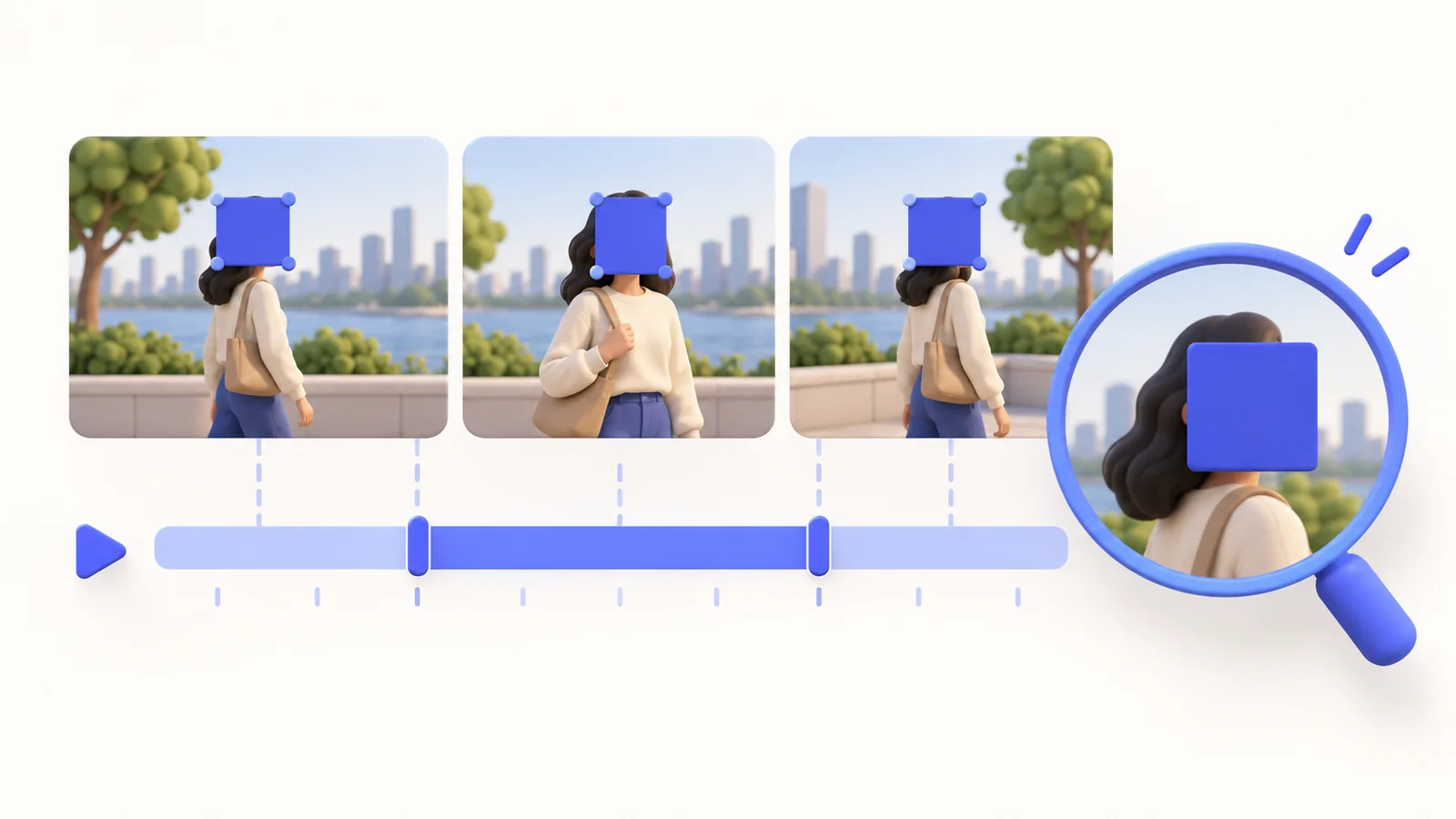
Use the right region treatment
ScreenTale’s privacy-region workflow includes Solid Cover and Blur for chosen intervals. An opaque cover is the clearer editorial choice when text or identifiers must be hidden: the audience can see that an area was intentionally removed. Blur can suit visual softening, but do not assume a faint or small blur conceals every readable character.
Make the region large enough to include edges and nearby context that could reveal the same information. Check its start and end around the action, not just while the window is stationary. Avoid a cover that hides the control needed to understand the tutorial. If privacy and instruction conflict, re-record with safer sample data rather than making the demonstration impossible to follow.
Review movement and every timeline boundary
Play the interval at normal speed, then pause around transitions and inspect adjacent frames. Scrolls, window moves, zoom changes, and newly opened panels can expose information outside the selected region. Check the actual composition in the project. Do not assume a region follows an object unless the visible result proves the protection remains in the right place.
After changing cuts or framing, repeat the affected privacy review. A harmless timing adjustment can reveal a frame before the cover appears or after it disappears. Mark the areas you have checked, then export a representative section if the sequence is complex. There is no universal rectangle size or duration that makes all recordings safe; the right bounds depend on your own source.
Review every artifact you will send
A visual cover does not silence a spoken name, remove a secret from system audio, or correct a caption that transcribed it. Listen to the delivered audio and read the caption track. Inspect any thumbnail or still image you intend to publish. Keep the project and original media private; the checked video is the public handoff, not permission to share every source file.
Finally, open the exported file in a player and inspect the protected moments again. Local recording, editing, and export describe where processing happens; they do not establish that every frame is suitable for publication. If you use external subtitle recognition, selected edited audio is sent only after your confirmation, so review that choice separately. Stop sharing when a remaining detail is uncertain and replace the affected take with safer material.
Review the result, not the effect name. Try ScreenTale with a sample-data demonstration and check its privacy regions in the final export.


0 comments
Comments are currently closed for this article.