
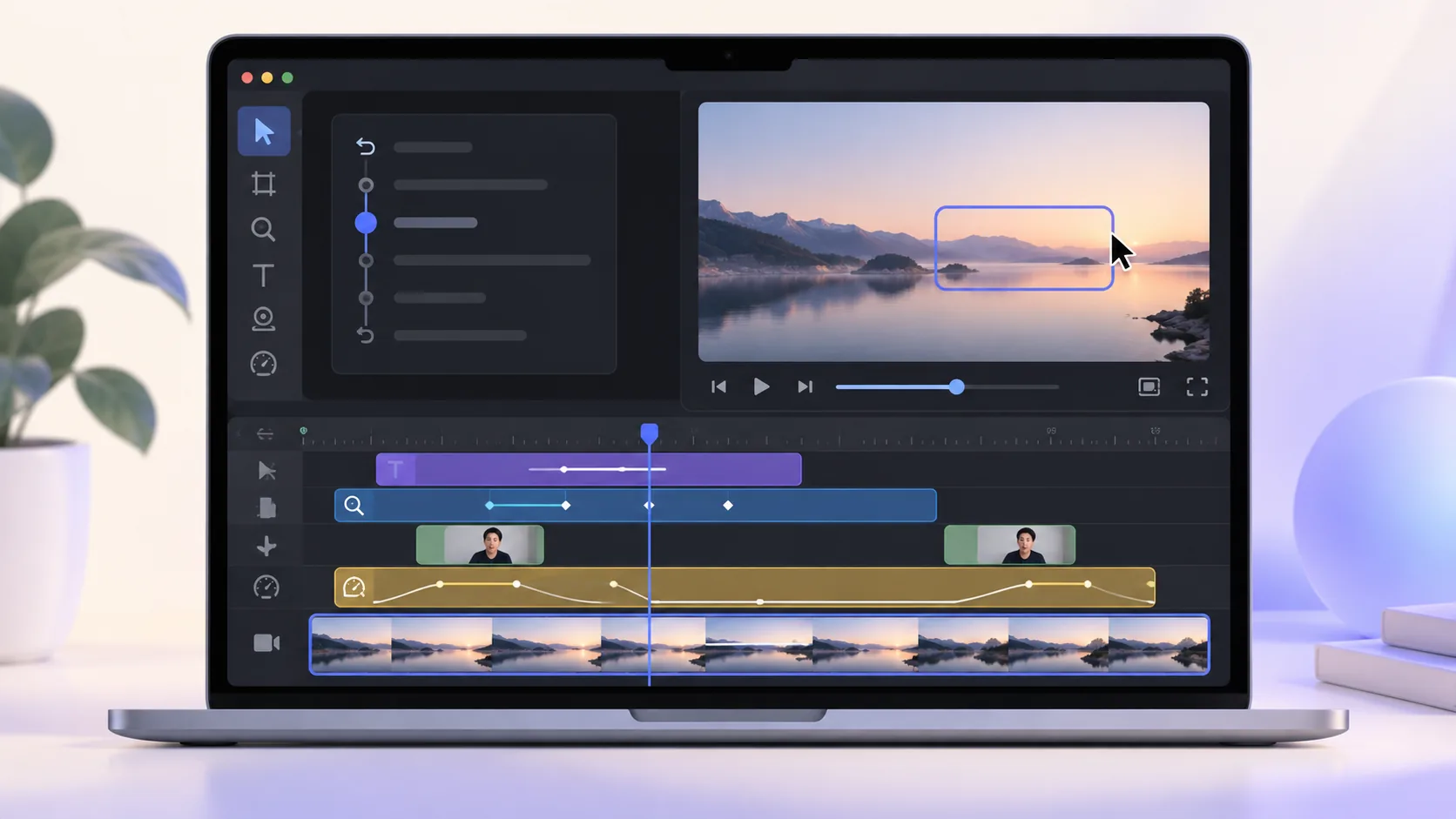
The ability to edit screen recordings after capture changes how you record. You no longer need perfect cursor motion, final camera placement, and every visual decision in one take. Capture a clean explanation first, then shape attention and pace with the source still intact.
What non-destructive means here
- Your original screen and audio media remain the reference rather than being repeatedly re-encoded.
- Cuts, speed, zoom, cursor, background, camera, annotations, keystrokes, and audio choices can be revised in the project.
- You can reopen the project and export another format without rebuilding the lesson from zero.
Why editing during capture creates fragile recordings
When visual effects are baked into the recording, every mistake becomes permanent. A zoom aimed slightly too far left cannot reveal the hidden control. A camera bubble covering a menu stays there. A distracting pointer trail becomes part of the pixels. The only universal repair is another take or a larger editor with manual masking and animation.
Capturing interaction signals alongside media provides another option. The editor can present the same source differently without pretending the original event changed. That is the idea behind ScreenTale’s project workflow.
Edit screen recordings after capture in layers
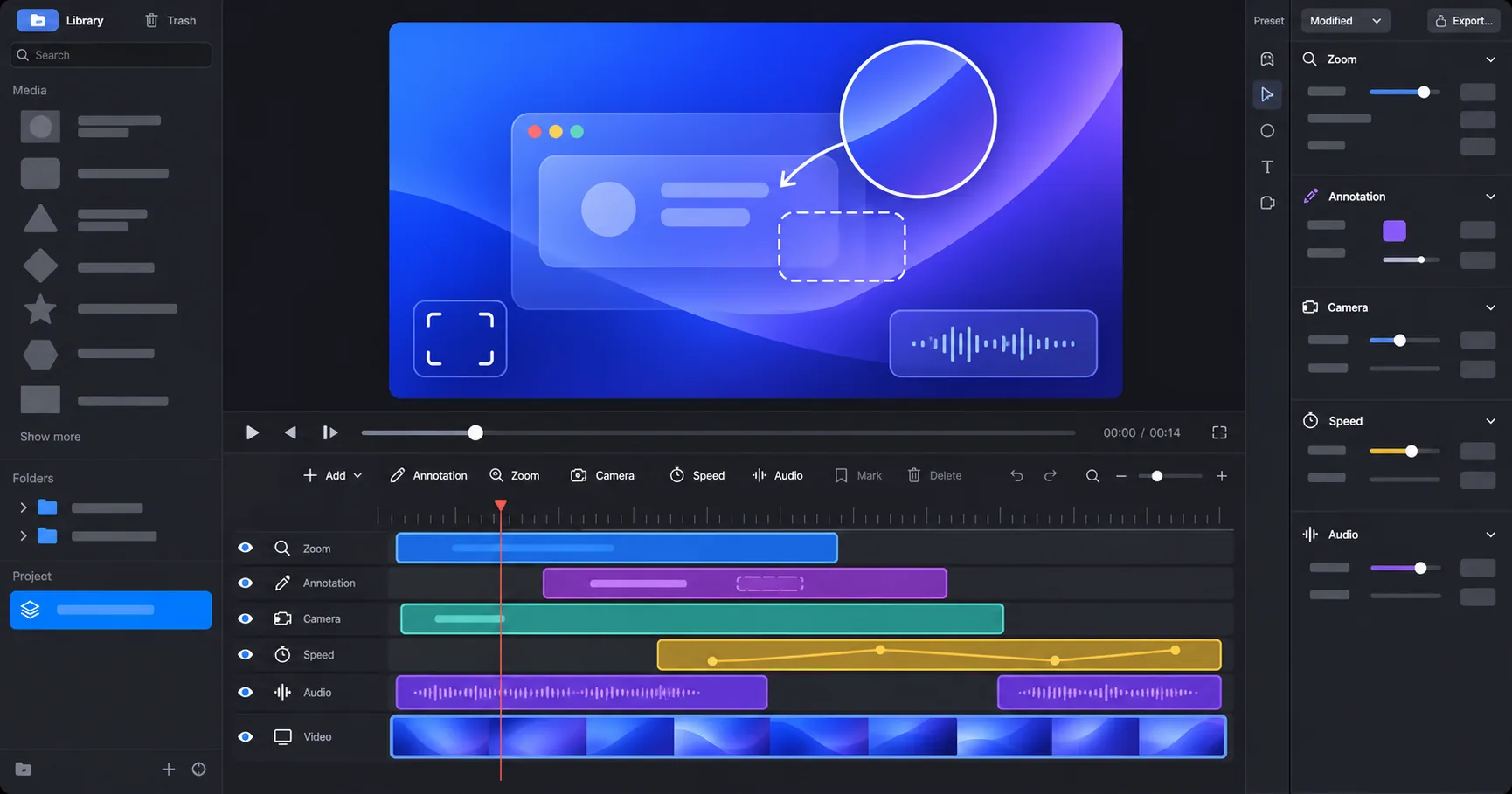
ScreenTale organizes presentation controls into Framing, Background, Zoom, Cursor, Annotations, Camera, Keystrokes, and Audio. Each answers a different question. Framing decides how the captured screen sits on the canvas. Zoom decides what fills the viewer’s attention. Cursor and keystrokes reveal interaction. Camera and audio carry the human explanation.
Separating these concerns makes revisions smaller. If a vertical export needs different camera placement, change that layer. If narration is quiet, rebalance audio. If a shortcut is sensitive, remove or hide its keystroke overlay without altering the screen source.
Repair mistakes in the right order
Begin with structure. Split around mistakes, remove unusable sections, close accidental gaps, and arrange the remaining segments. Adjust speed only where it improves understanding: a repetitive wait can move faster, while a dense setup may need more time.
Next repair sound, because timing decisions affect the audio story. Then direct attention with zoom and cursor. Style the canvas, background, corners, shadows, and camera last. Polishing before structure is stable creates work you will throw away.
Use marks and segments to keep a longer edit understandable
Long tutorials become difficult when the timeline is one uninterrupted strip. Add marks at topic changes and split where the presentation treatment changes. A section introducing an idea may show the camera; the technical walkthrough can prioritize the screen; the conclusion can return to the presenter.
These boundaries also make future updates cheaper. When one interface changes, you can find and replace the affected explanation instead of searching through a flat recording and rebuilding every effect around it.
One source can support several outputs
A reusable project can produce landscape video for YouTube, a shorter portrait cut, a GIF for documentation, or audio-only material when the content allows. Not every composition transfers automatically—portrait framing often needs a fresh review—but the explanation and clean source do not have to be captured again.
ScreenTale supports MP4, MOV, GIF, and M4A output up to 4K and 60fps where applicable. Choose the smallest format that preserves the detail your audience needs; source-code text deserves more resolution than a simple pointer animation.
Record for meaning, then edit for attention
Non-destructive editing does not mean careless capture. Clean audio, deliberate explanations, and a private desktop still matter. It means fewer presentation decisions compete for attention while you speak. You can focus on being correct, then focus on being clear.
That separation is especially useful for solo creators. The ScreenTale workflow keeps the project editable, so a changed title, zoom, camera crop, or export does not demand another performance.
Give the first take room to become better. Try ScreenTale free and reopen the same project after export to test a second visual direction.


0 comments
Comments are currently closed for this article.