
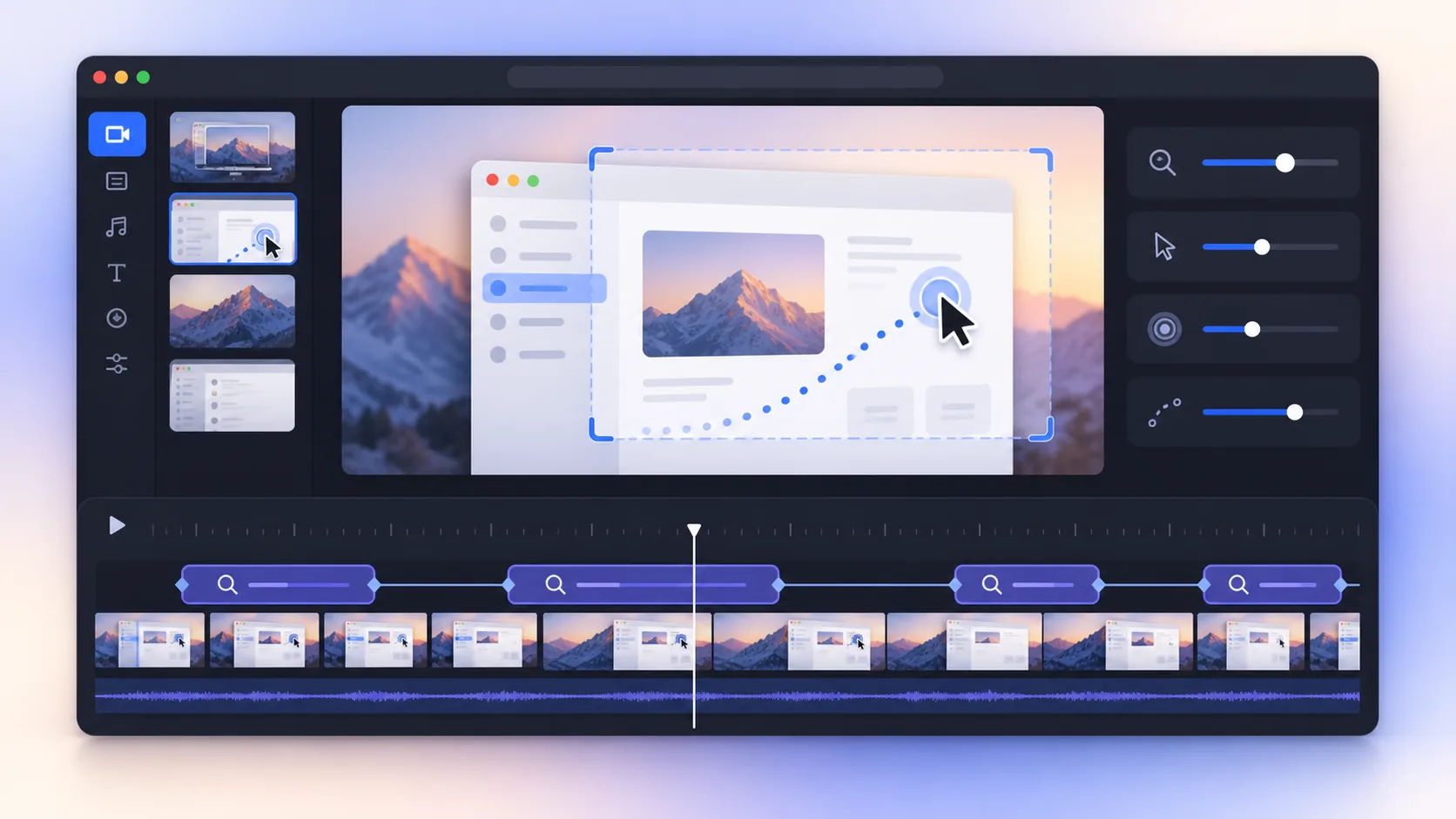
Auto zoom and cursor smoothing solve one quiet problem in every tutorial: the viewer does not know your interface as well as you do. A well-timed close-up says “look here” before the narration has to explain it. Used without restraint, however, the same effect makes a video feel seasick. Clarity comes from direction, not movement for its own sake.
The useful rule of thumb
- Zoom only when the viewer needs more detail or a change of focus.
- Let cursor smoothing remove accidental jitter, not the personality of intentional movement.
- Generate suggestions first, then review every transition at normal playback speed.
Auto zoom is an attention tool, not decoration
A full desktop contains menus, sidebars, notifications, and large empty areas. On a phone, the button you are discussing may become a few pixels wide. Zoom reduces that visual distance. It should arrive just before or as an important action begins, stay long enough for the viewer to understand the context, and release when the task moves elsewhere.
The easiest mistake is reacting to every click. If the frame jumps for a checkbox, then a dropdown, then a confirm button within three seconds, the viewer spends more effort following the camera than learning the workflow. Group related actions into one stable framing whenever possible.
How ScreenTale approaches automatic zoom
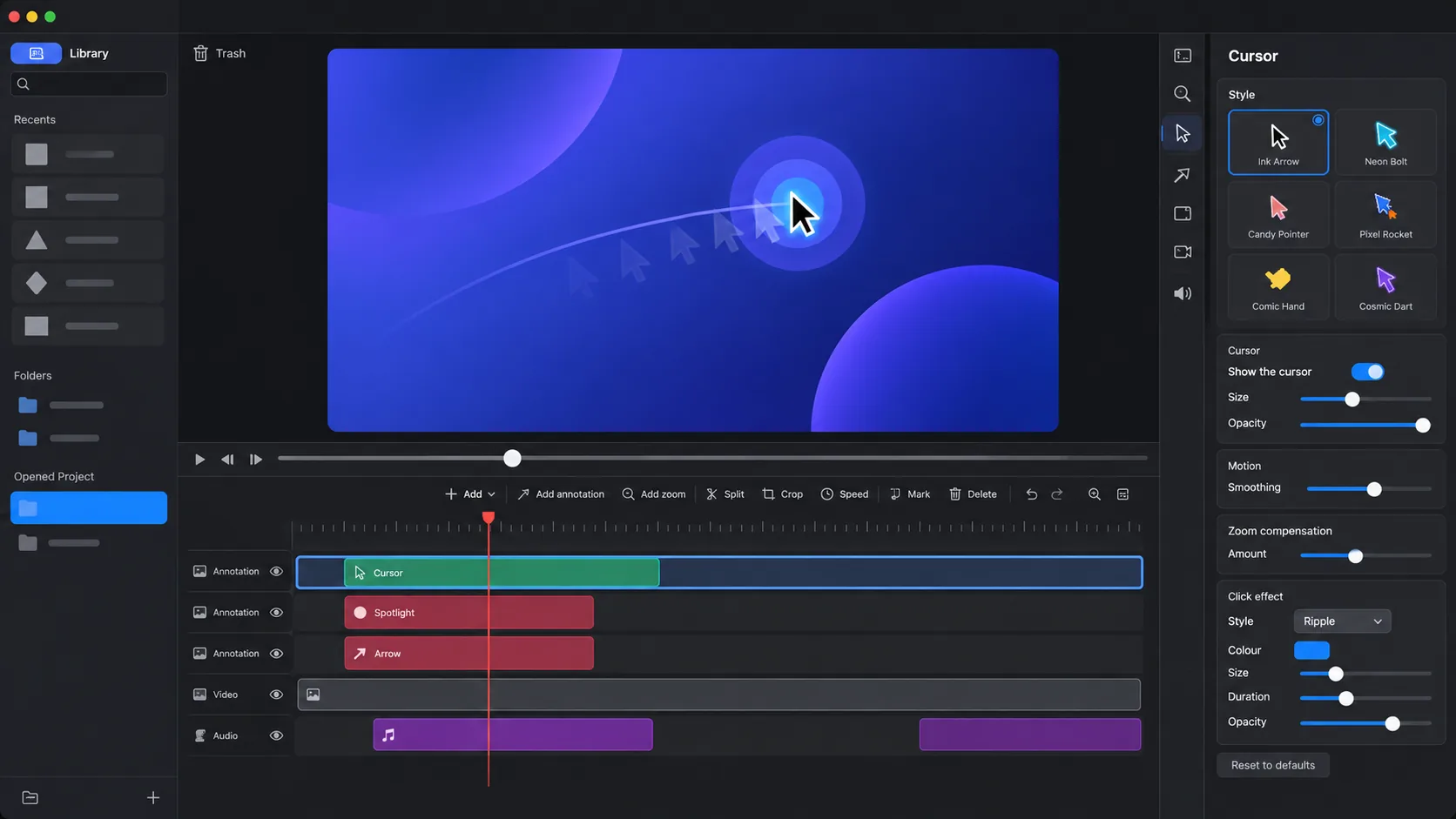
ScreenTale uses recorded pointer and click information to generate cursor-aware zoom suggestions. Those suggestions do not flatten the source video. In the Zoom inspector you can change timing, framing, scale, and the segment where the effect applies. You can also remove a suggestion that does not help.
This matters because an algorithm sees activity, while you know the story. A click on a background window may be accidental. A small text change with no click may be the most important moment in the lesson. Automation handles the first draft; editorial judgment handles meaning.
What cursor smoothing should preserve
Natural mouse movement contains tiny corrections. At recording scale they are harmless, but enlarged in a video they can look nervous. Cursor smoothing creates a cleaner path and makes the pointer easier to track. The goal is not a perfectly mechanical line; it is removing noise while preserving where you deliberately paused, pointed, or circled.
Cursor styling can also change size, emphasis, and visibility after recording. Keep contrast high enough to see against both light and dark interfaces. If the pointer is not part of the explanation for a section, hiding it can be clearer than constantly animating it.
A five-pass auto zoom and cursor smoothing workflow
I review these effects in passes so I do not polish a transition that will later be cut. Start with structure, then attention, then motion.
- 1. Cut first: remove pauses and mistakes before tuning visual timing.
- 2. Generate zoom suggestions: treat them as candidates, not finished decisions.
- 3. Keep only story beats: retain zooms that reveal detail or move attention.
- 4. Review the cursor: smooth distracting motion and check visibility on every background.
- 5. Watch once without stopping: if you notice the camera more than the lesson, simplify.
When manual framing is better than automation
Code comparisons, before-and-after designs, and dashboards often need two areas visible at once. A cursor-following crop may hide the relationship you are explaining. Set a stable manual frame for those sections, or split the segment and give each idea enough screen time.
The same applies to accessibility. Rapid motion can be uncomfortable, and small zoom changes may offer no readability gain. Prefer fewer, meaningful transitions and a calm pace. Your video should still make sense if the viewer focuses on the narration rather than chasing every pointer move.
Clear motion begins with a clear explanation
No zoom effect can rescue a tutorial that changes direction every few seconds. Outline the result, record actions in a logical order, then use motion to reinforce that order. The effect works best when it feels inevitable rather than impressive.
ScreenTale keeps zoom and cursor choices editable, so you can try a stronger treatment and pull it back without recording again. That freedom is valuable, but restraint is still the final editing tool.
See whether the motion feels natural. Claim the 30-day ScreenTale Launch Pass and edit automatic zoom on one of your own recordings.



0 comments
Comments are currently closed for this article.