
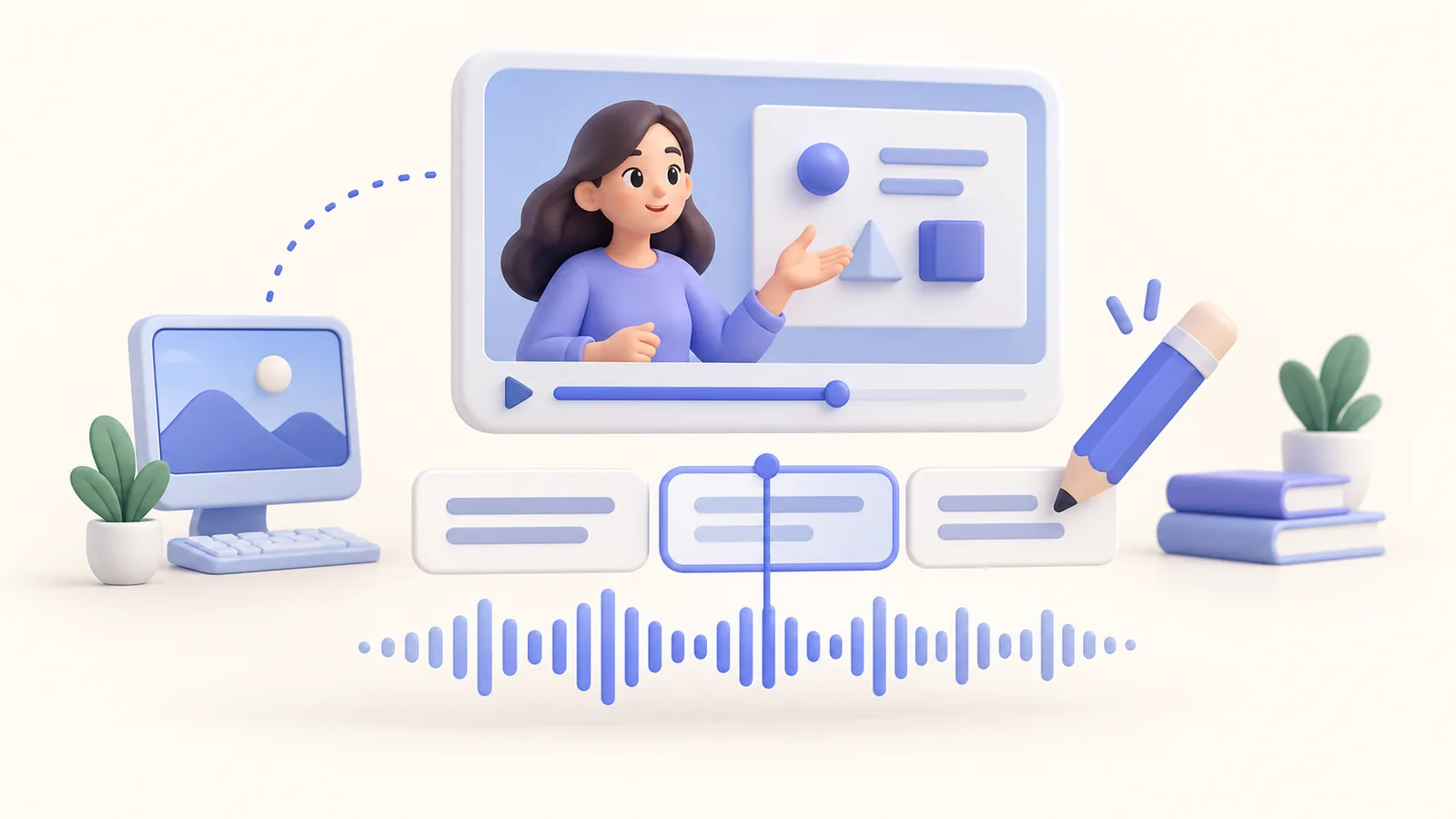
Your recording says the name of a function correctly, but the generated caption turns it into a different word. That small error can make a tutorial harder to follow than having no caption at that moment. When adding subtitles to screen recordings, treat recognition as the first pass. Finish the edit, choose where audio is processed, proofread the important terms, and test the delivered captions at normal speed.
A practical subtitle workflow
- Finish major cuts before generating the draft.
- Local Whisper does not upload audio; an external provider is a separate, confirmed choice.
- Review technical names, punctuation, and the timing of each caption.
- Keep an SRT when the destination needs a separate subtitle file.
Prepare audio before adding subtitles to screen recordings
Start from the version you intend to deliver. Remove discarded takes, check that speech is audible, and settle major timeline cuts. Captions created before substantial rearrangement need another timing review afterwards. Listen to a representative section on headphones, then through the kind of speaker a learner may use. A transcript cannot rescue speech that is buried under the computer’s sound.
ScreenTale supports reviewable subtitle drafts from edited audio. Its product workflow also includes microphone and system audio with timeline editing. Use that control to make the explanation clear before recognition. This is preparation advice, not a promise of perfect accuracy or automatic noise cleanup. Proper nouns, code, and mixed-language speech still deserve human attention.
Choose local or external recognition deliberately
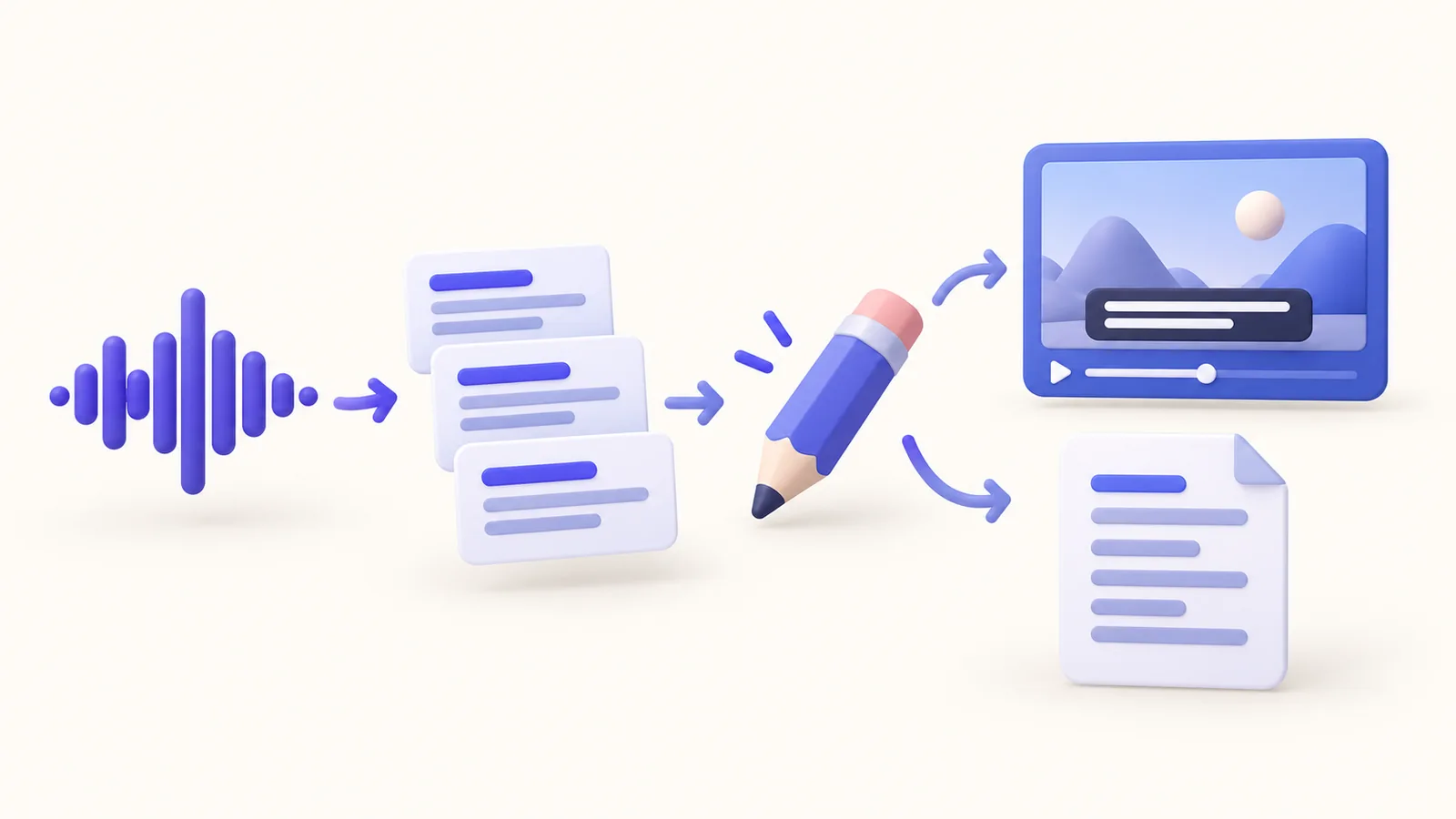
ScreenTale can generate a draft on your Mac with Local Whisper. That path does not upload audio. If you choose an external subtitle provider and confirm, selected edited audio goes to your configured HTTPS endpoint; video and project files are not uploaded by that subtitle step. Read the choice before continuing, especially when a recording contains a private discussion.
Local processing and provider processing have different practical constraints. Consider the machine, recognition quality on your own sample, language, and provider terms rather than assuming either route always wins. Do not send confidential speech to a provider merely because you have hidden the matching text on screen. A visual cover does not remove information from narration or system audio.
Proofread meaning, then timing
First correct the words that carry the instruction: names, menu labels, version numbers, commands, and negation. A missing ‘not’ can reverse the lesson. Keep an ordinary spelling reference beside the project when the same term appears repeatedly. Read each caption with its spoken sentence; punctuation should clarify meaning without turning every fragment into a formal paragraph.
Then watch at normal speed. Break long captions at natural phrase boundaries and give the viewer time to read before the next action. Keep captions away from controls, camera, and annotations. Test a small display, where a line that looks modest on your Mac can occupy much of the video. If a caption hides the exact button being explained, adjust the presentation before exporting.
Review the actual subtitle delivery
ScreenTale supports video captions and SRT export. A captioned video carries visible text in the delivered picture; a separate SRT lets a compatible destination manage the subtitle track. Decide based on the destination’s workflow. An SRT is not a translated article, and exporting one does not establish that your platform has attached it to the right video.
Play the exported result from beginning to end, checking the first caption, edits, and final sentence. If handing off SRT, verify it with the matching video in the intended player. Keep corrected captions and the project for later revisions. For access conditions, consult the current Launch Pass and license terms. A good caption workflow ends with a checked deliverable, not with the recognition progress bar.
Make the words worth reading. Download ScreenTale and review a short captioned lesson before processing the full recording.


0 comments
Comments are currently closed for this article.