
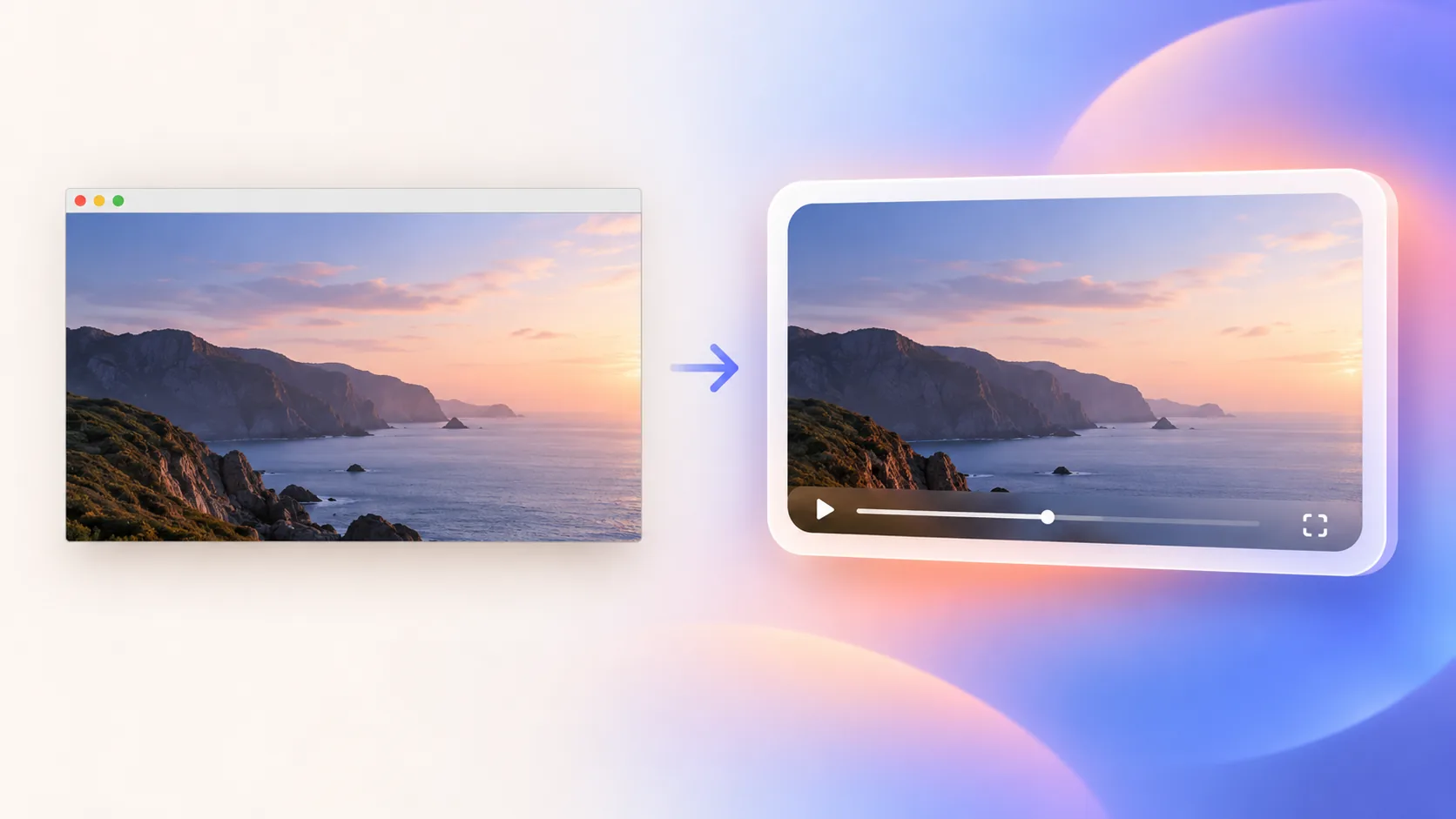
A background can make a screen recording feel intentional, create room for a camera or captions, and separate the app from the video edge. It can also waste space and reduce readability. The goal is not to make every capture look cinematic. Add a background to screen recording only when it improves contrast, composition, or reuse across formats.
Build the frame in this order
- Make the source readable before adding decoration.
- Choose canvas ratio and padding from the final destination.
- Use background color, corner radius, and shadow as one quiet system.
- Review the result at mobile size and in motion, not only as a still frame.
1. Start with the source and destination
Choose the final aspect ratio, then size the app window so labels and controls remain readable inside it. Remove irrelevant panels before shrinking. A background cannot compensate for tiny text. If the recording already fills the frame cleanly and every pixel carries useful context, edge-to-edge video may be the better composition.
Background space becomes useful when the captured window has a different ratio, needs separation from the page, or must share the canvas with camera, captions, a title, or another source. Define that job first. Decorative space without a job increases file area while making the demonstration smaller.
2. Use padding to create hierarchy
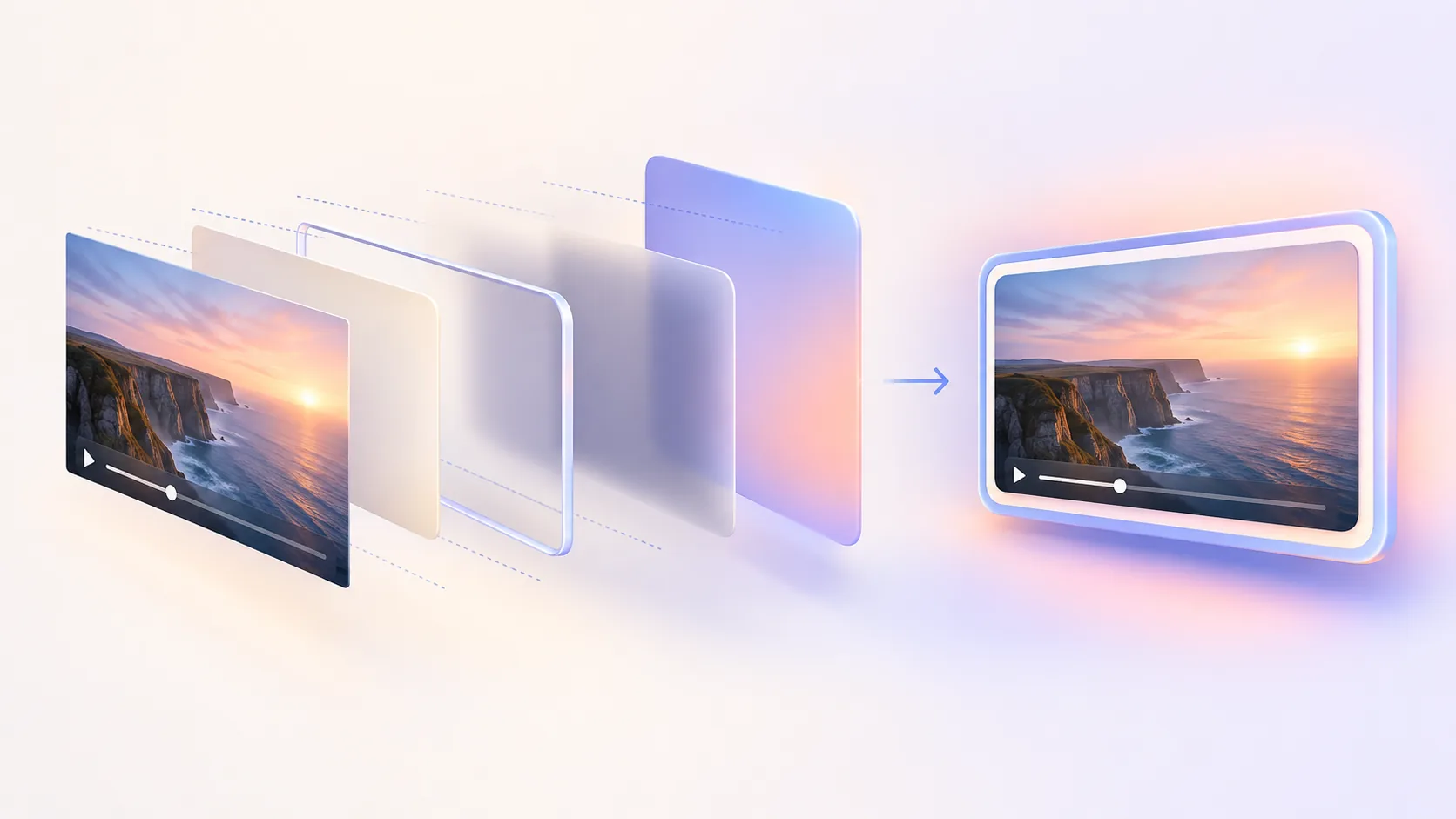
Begin with even padding and adjust only when another element needs room. Too little padding looks accidental; too much turns a readable interface into a thumbnail. Keep the source aligned to a clear grid. When camera or captions occupy one side, compensate deliberately rather than leaving the app apparently off-center.
Test the smallest expected viewer. A frame that feels generous on a desktop can make toolbar labels disappear on a phone. If readability fails, enlarge the source, remove more interface clutter, or create a separate crop. Do not solve every format with one amount of padding.
3. Keep color, corners, and shadow restrained
Choose a background that separates from the application without fighting its colors. A subtle solid, soft gradient, or quiet image usually works better than high-frequency texture. Preserve contrast around dark and light windows. If the app changes appearance during the video, test the background against every major state.
Corner radius and shadow should describe one object, not advertise an effect. Use enough shadow to separate layers and enough radius to feel intentional. Avoid heavy glow, extreme perspective, and multiple competing borders. Motion already demands attention; the frame should remain stable while the interface changes.
4. Keep the frame editable until export
Add background after trimming and choosing the important source sections. Recheck zoom and cursor paths because a smaller framed source changes perceived motion. Position camera and annotations after the main frame is stable. Then export a short sample and inspect compression around gradients, shadows, and small text.
ScreenTale keeps background, canvas, framing, camera, zoom, cursor, and annotations adjustable after recording. That makes it possible to create landscape, square, or vertical compositions from the same source without baking decoration into capture. Save restrained presets, but adapt them when content and destination change.
Frame the story; do not shrink it. Try ScreenTale and build one quiet frame around a readable source.



0 comments
Comments are currently closed for this article.