
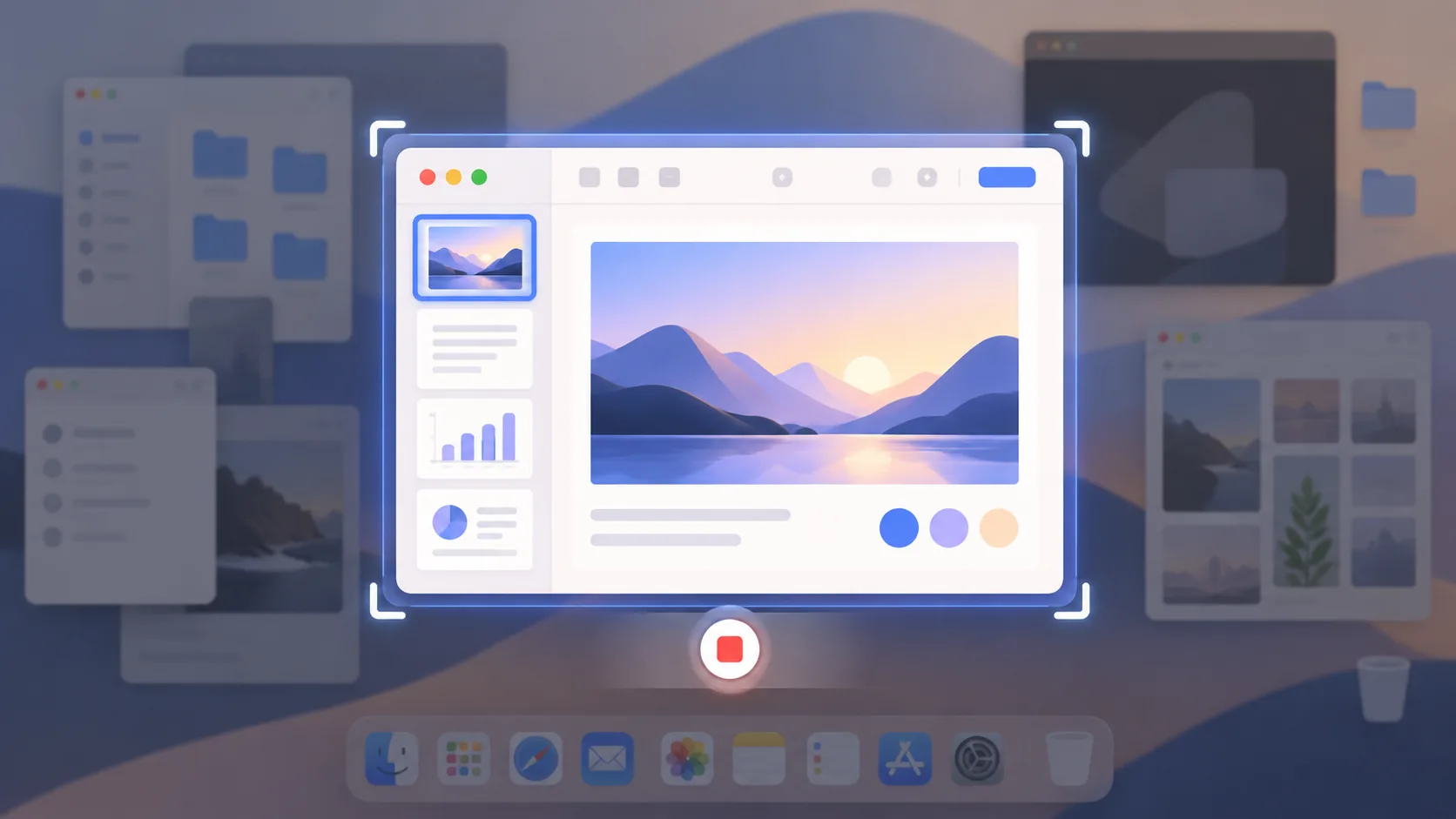
Recording an entire display is convenient, but it also captures the most clutter and risk. A dock badge, notification, filename, open tab, or second window can reveal more than the lesson requires. When the workflow permits it, record one app window on Mac and treat everything outside that window as out of scope. The result is calmer, easier to frame, and safer to share.
Choose capture scope deliberately
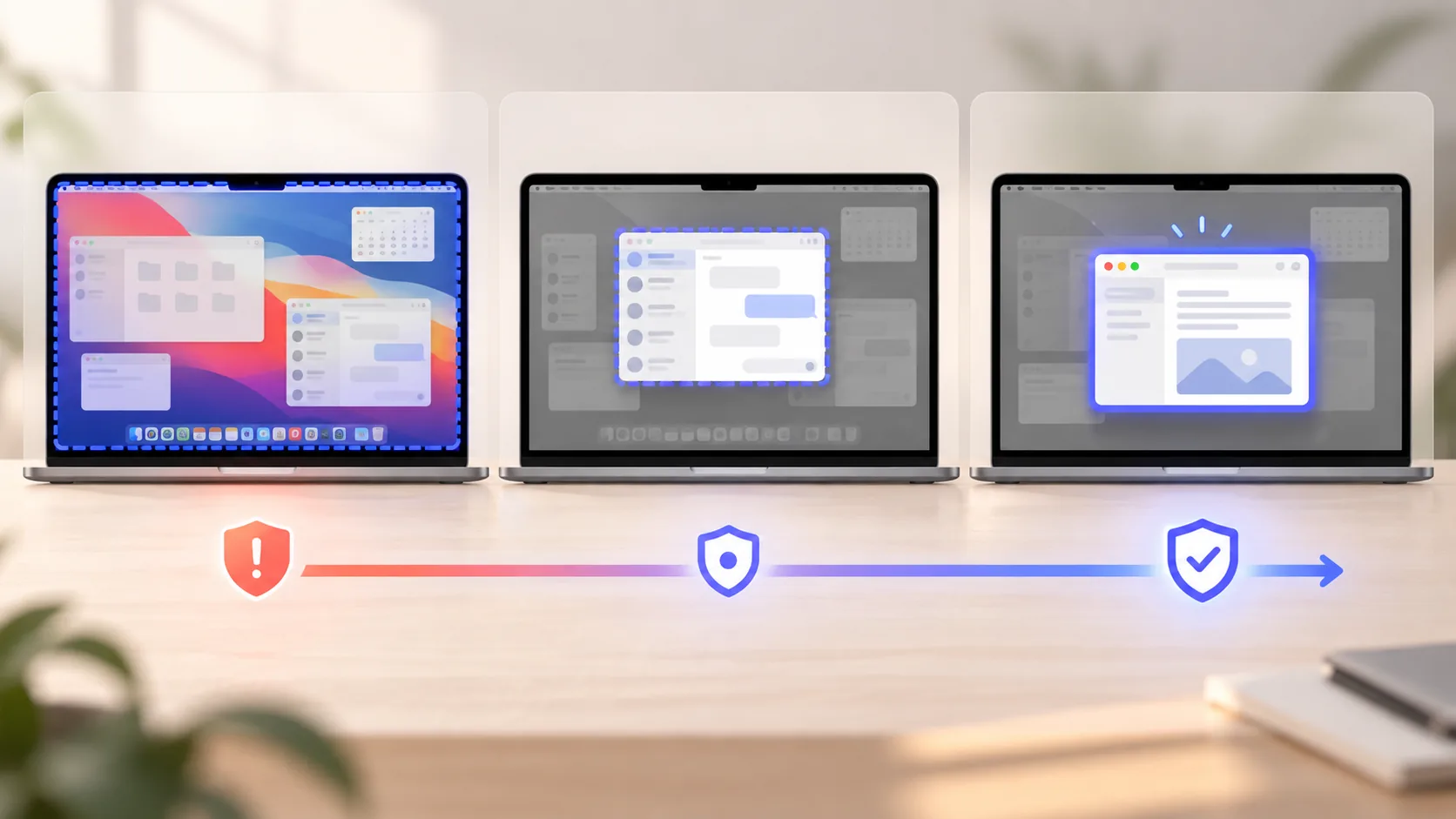
- Use a window for one stable document or interface.
- Use an app when the workflow moves between several windows from the same application.
- Use an area when visual boundaries matter more than window identity.
- Use a full display only when cross-app context is genuinely part of the explanation.
1. Match the scope to the movement
A single-window capture is ideal for a stable browser page, editor, settings panel, or document. Application capture fits workflows that open palettes, inspectors, or several windows owned by one app. Area capture is useful when only a fixed rectangle matters. Display capture belongs to lessons that intentionally cross apps or explain system-level behavior.
Walk through the complete task before choosing. Menus, sheets, popovers, permission dialogs, and windows created by helper processes may not belong to the original window. A narrow scope that misses the decisive state is not safer; it is incomplete. Test the exact transitions and choose the smallest scope that captures all required evidence.
2. Clean what remains inside the window
Window capture does not sanitize the window itself. Remove customer names, account avatars, browser profiles, internal URLs, recent files, document history, and personal bookmarks. Use sample data and a recording-specific workspace. If tabs are visible, close everything unrelated and place the demonstration tab first so accidental switching has less consequence.
Increase text size and resize sidebars before recording. A window that fills only half the final canvas may become unreadable on mobile. Keep enough chrome to orient viewers, but collapse panels that add no meaning. Record a short test and inspect the exported size rather than trusting the large editing preview.
3. Handle menus, dialogs, and desktop transitions
Rehearse every menu and dialog. If a required sheet falls outside the selected source, switch to application capture or a deliberate area instead of improvising mid-take. Avoid dragging files from a real desktop; prepare a synthetic folder and open it through the app. Keep notification banners off even when you believe the desktop is excluded.
Explain transitions before making them. Viewers tolerate a brief pause when they know a dialog is opening, but a missing or flashing state looks like an editing error. If one step requires a broader source, consider recording it as a separate safe section and joining the result rather than widening the entire capture.
4. Frame the narrow capture for the final canvas
A single window rarely matches the final aspect ratio exactly. Add balanced padding, a restrained background, rounded corners, or a shadow only after the content is readable. Place camera and captions in empty canvas space rather than over controls. Zoom into small state changes, then return to context so the viewer does not lose orientation.
ScreenTale can record a window, app, display, or area and keeps framing, background, canvas, zoom, cursor, and camera adjustable after capture. Review the exported file for clipped menus, hidden dialogs, private labels, and black or empty regions. Privacy and composition are both easier when the source boundary was intentional from the start.
Capture less, explain more clearly. Try ScreenTale with one window and build the final composition after recording.



0 comments
Comments are currently closed for this article.