
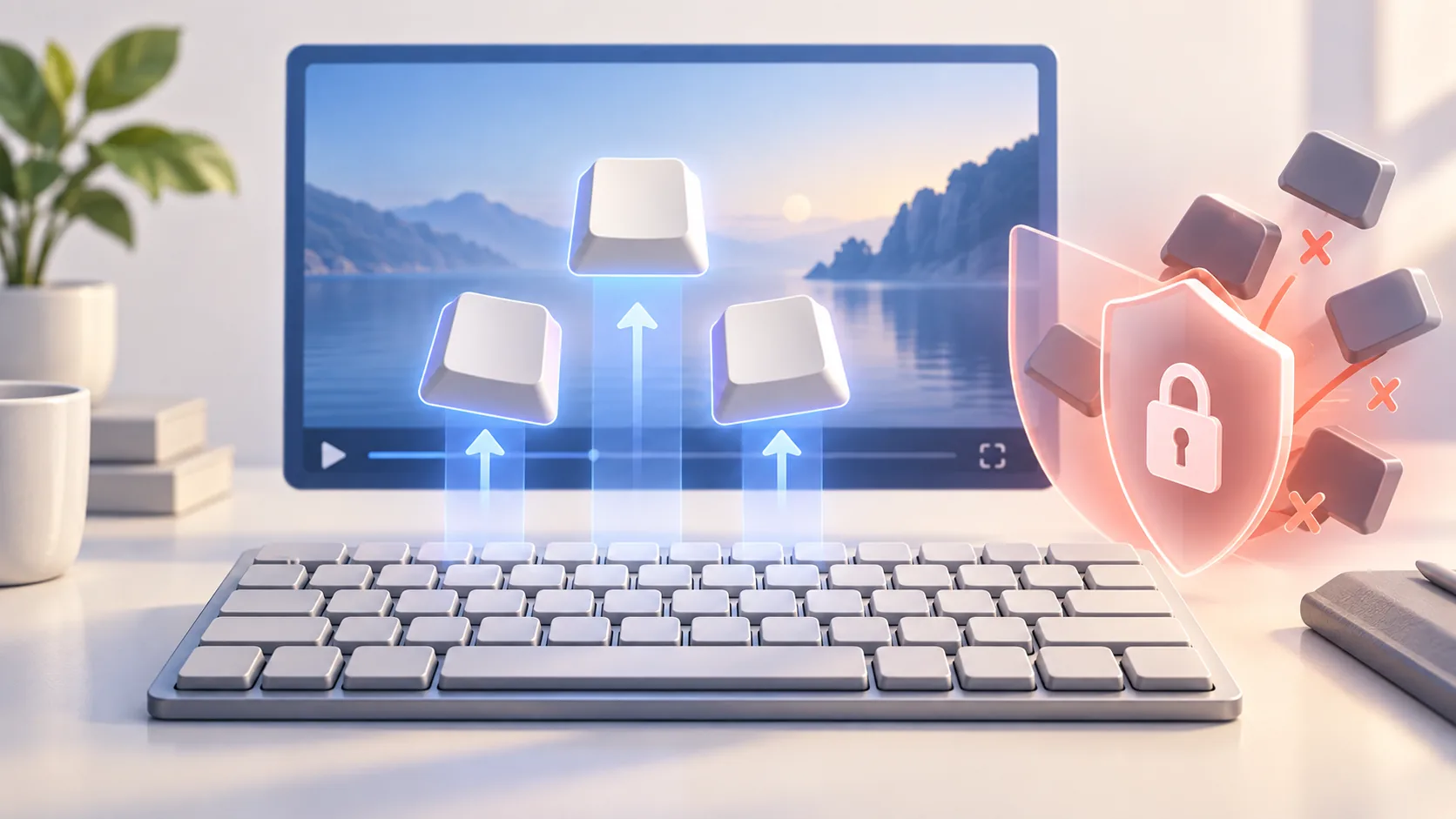
Keystroke overlays are useful when a shortcut is part of the lesson and dangerous when they become a visual keylogger. The safest way to show keystrokes in screen recordings is to treat them as edited teaching material: capture only with clear intent, prepare a synthetic environment, exclude sensitive input, and keep only combinations the viewer needs. More keys rarely mean more understanding.
The safe default
- Leave keystroke capture off unless a shortcut teaches something.
- Use sample accounts and never type a real password, token, recovery code, or private message.
- Prefer meaningful shortcuts over ordinary prose and repeated single keys.
- Review the complete overlay track before export, not only the visible timeline section.
1. Decide which keys deserve to be visible
Write the shortcuts into the lesson outline before recording. Useful examples change mode, run a command, open search, or reveal a repeatable workflow. Ordinary typing usually duplicates what viewers already see in a field. If the lesson still makes sense without an overlay, narration or a short annotation may be safer and easier to read.
Do not enable capture merely to make the video feel technical. A fast stream of letters forces viewers to split attention between the interface, voice, cursor, and keyboard. Keep combinations on screen long enough to read and use the same placement throughout the video. Accessibility improves when each visual channel has one job.
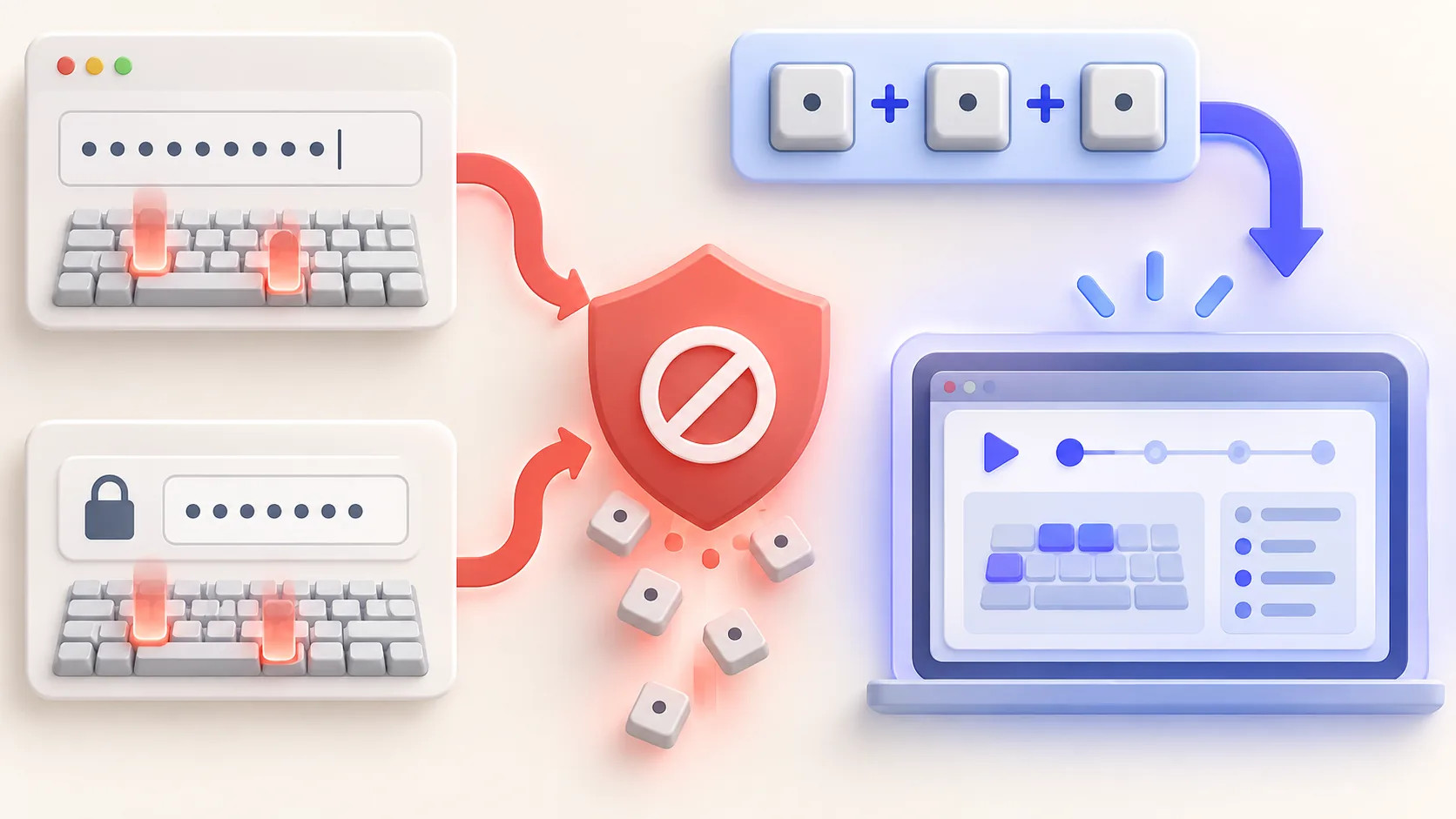
2. Prepare a recording-safe keyboard workflow
Use a sample account, synthetic filenames, and placeholder commands. Copy prepared non-secret values when typing them offers no teaching value. Close password managers, terminals with credentials, private chat, and autofill prompts. Rehearse every step so an unexpected authentication dialog does not appear while capture is active.
ScreenTale keeps keystroke recording off by default and stops collecting when macOS Secure Input is active. Those safeguards reduce risk; they do not make every typed value appropriate for publication. A secret shown elsewhere on screen, pasted into a visible field, or typed before protection activates can still be exposed. Safe source material remains the first defense.
3. Record shortcuts as teaching beats
Name the purpose before pressing the keys: “Open project search,” then perform the shortcut once and let the result settle. This connects symbol to outcome. Avoid repeatedly pressing a shortcut because the interface responds slowly; preserve the wait or explain it. When a modifier is held, make sure the overlay represents the complete combination rather than a misleading fragment.
For coding and software lessons, distinguish commands from text input. A shortcut can appear as a compact overlay; a command worth copying may be better placed in the article, lesson notes, or code block where it remains searchable. The video should demonstrate timing and context, while supporting text carries exact syntax.
4. Audit the overlay after capture
Watch the entire project at normal speed and inspect every keystroke event. Remove accidental keys, repeated modifiers, unrelated typing, and anything that could identify an account or environment. Check that the overlay does not cover controls, captions, code, or the camera. A clean style, restrained size, and consistent position matter more than animation.
ScreenTale lets you review and style keystrokes after recording alongside cursor, zoom, framing, camera, and annotations. That separation makes deletion possible before export, but it is not permission to capture recklessly. If you are uncertain whether a sequence is sensitive, remove it and explain the command another way.
Show the command, not the person’s typing. Try ScreenTale with one shortcut-led lesson and audit every keystroke before export.



0 comments
Comments are currently closed for this article.