
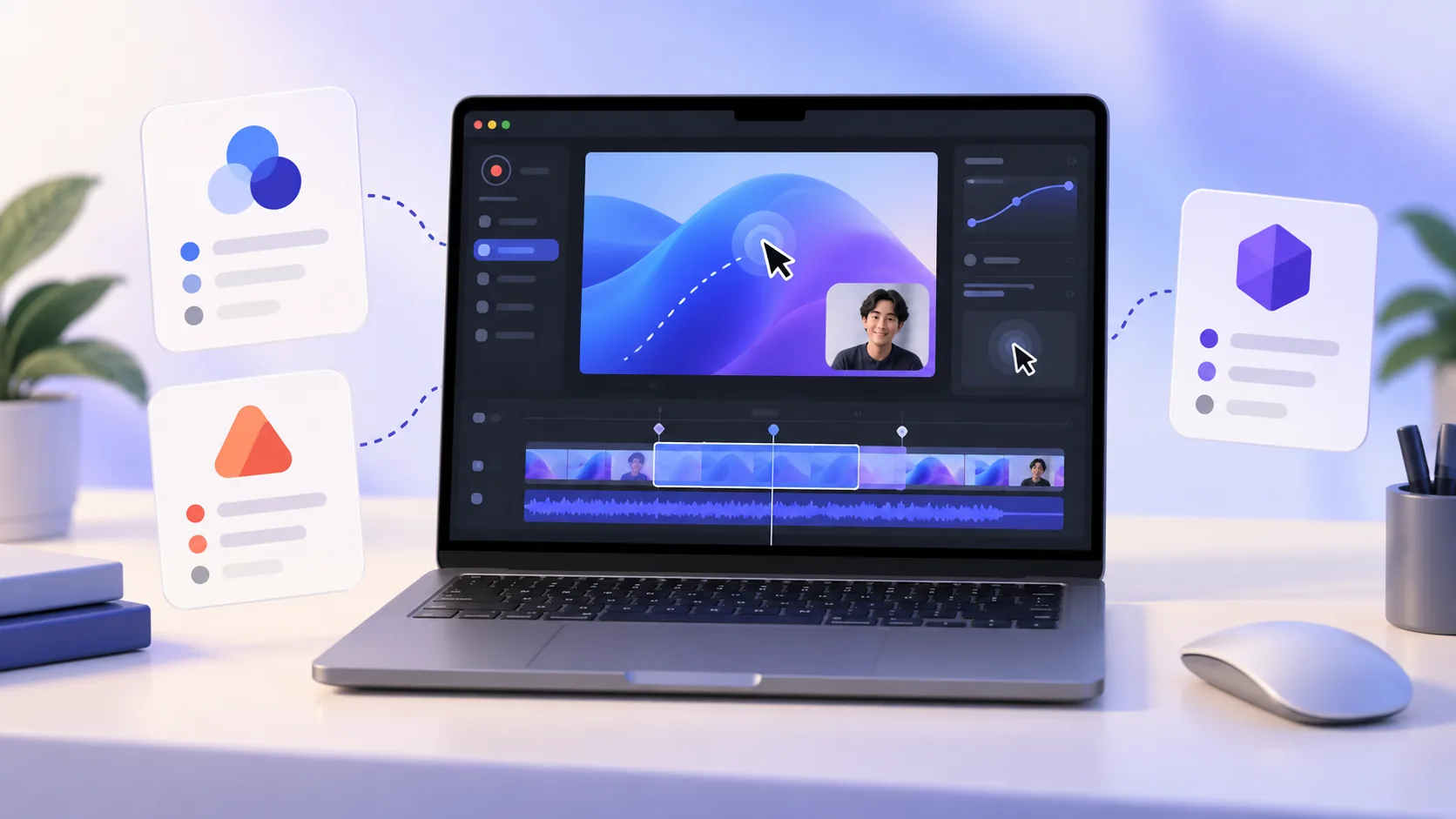
Screen Studio makes polished screen videos approachable, but its subscription can be difficult to justify for occasional work. The good news is that the Mac ecosystem now offers several capable alternatives—from a focused native editor to free, open-source production software. Here are seven options worth considering, with the trade-offs left in rather than hidden.
Quick answer: which alternative should you choose?
- ScreenTale for a native, local-first Mac workflow with a $9.99 USD lifetime license.
- Cap or OBS Studio when open-source software and a zero-cost starting point matter most.
- CleanShot X when screenshots and short captures are as important as edited videos.
- ScreenFlow for deeper timeline production, Loom for cloud sharing, or QuickTime Player for basic capture.
How I compared these Screen Studio alternatives for Mac
A recorder is not automatically better because it has more controls. I looked at the complete path from capture to a video you can publish: how quickly the app starts, whether zoom and cursor effects remain editable, where recordings are processed, what export choices exist, and what the software costs after the first month.
Prices and plan details below were checked on September 9, 2026. They can change, so use the linked official pages before buying. I also avoid declaring one universal winner: a developer recording a bug report and a YouTuber producing a ten-minute tutorial need different things.
1. ScreenTale: a budget-friendly native editor for Mac
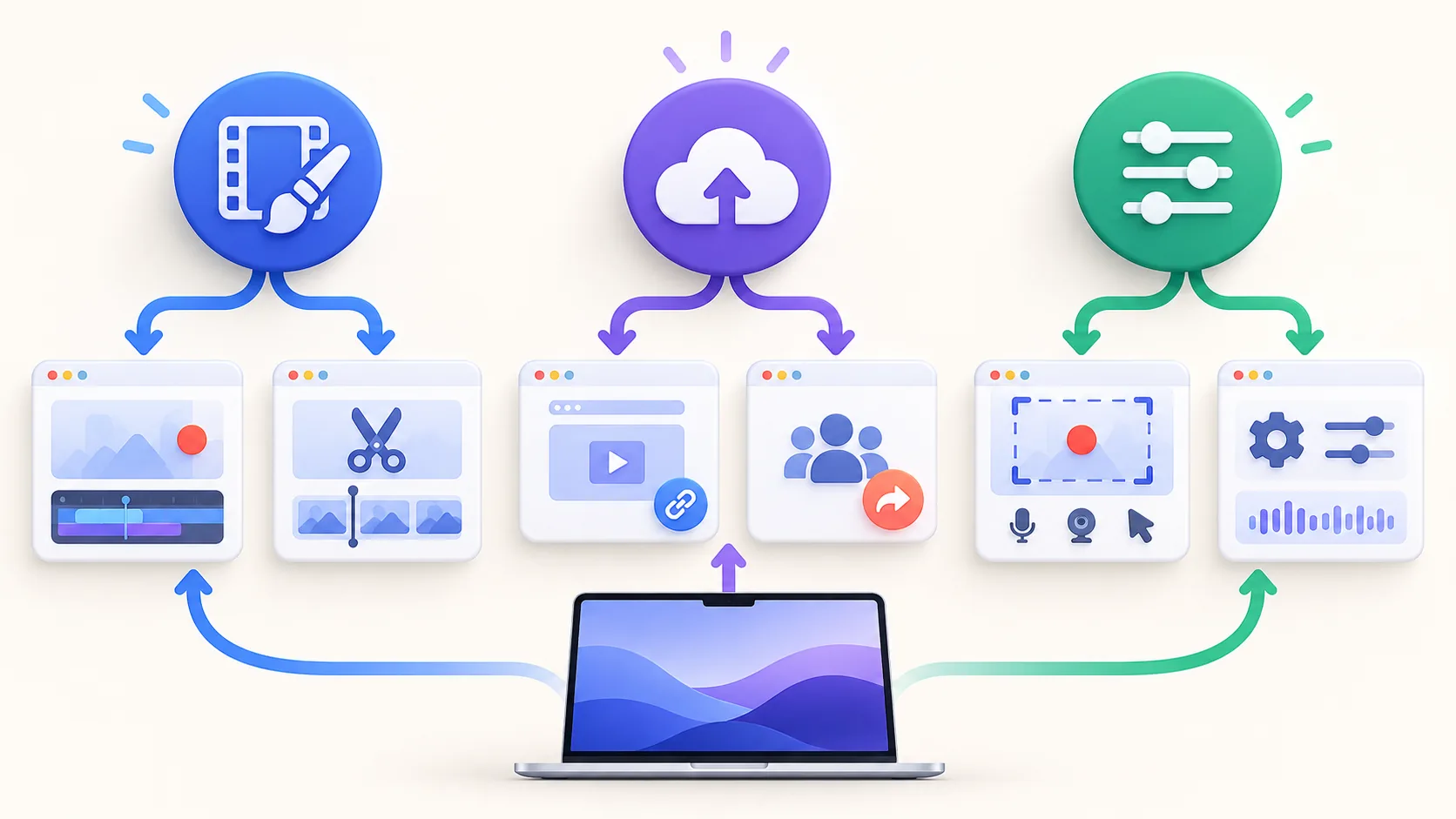
ScreenTale records a display, window, app, or selected area together with system audio, microphone, and camera. After recording, its editor keeps zoom, cursor, camera, framing, background, keystrokes, annotations, and audio decisions adjustable. That is the useful middle ground between a raw recorder and a general-purpose video editor.
The app runs natively on Apple silicon and requires macOS 15 or later. Recording, editing, preview, project storage, and export happen locally. An account-bound 30-day Launch Pass has no watermark; the $9.99 USD lifetime license covers up to three active Macs and includes future releases. Polar confirms the actual transaction currency and tax at checkout. It is the strongest fit here for creators who want Screen Studio-like polish without another subscription.
- Best for: tutorials, product demos, coding lessons, and creator videos.
- Trade-off: Mac-only, with no Windows or Linux version.
2. CleanShot X: capture and screenshots in one toolkit
CleanShot X combines screenshots, scrolling capture, annotation, screen recording, and quick sharing. Its smart zoom can make recordings easier to follow, while the capture overlay is excellent for people who produce visual documentation all day. The one-time Mac license starts at USD 35 and includes one year of updates; continued updates are optional.
Choose it when screenshots are half of your job. If your priority is a layered recording project with detailed post-capture pacing, compare its editing model carefully with a dedicated screen-video editor before deciding.
- Best for: support teams, technical writers, and designers.
- Trade-off: broader capture utility, less centered on long-form timeline storytelling.
3. Cap: an open-source route to polished demos
Cap is an open-source screen recorder with a clean desktop experience, local recording, camera support, and automatic zoom. Its free personal tier makes it appealing if budget is the first constraint. Paid desktop and cloud options add commercial use and sharing capabilities, so read the plan boundaries if the videos are part of paid work.
Cap is a good match for makers who value open source and may want cloud sharing later. ScreenTale is simpler to price for a Mac-only solo workflow; Cap is broader when self-hosting or a web sharing layer matters.
4. OBS Studio: maximum control for zero license cost
OBS Studio remains the flexible free and open-source choice for recording and live streaming on macOS, Windows, and Linux. Scenes, sources, filters, encoders, and plugins can support a studio-grade setup. It is hard to beat when you need multi-source live production or exact encoding control.
That power asks for setup time. OBS records the composition you configure; it is not built around automatically turning cursor movement into editable zooms after capture. Use it when control and streaming matter more than a short learning curve.
5. ScreenFlow: a mature timeline for larger productions
ScreenFlow combines screen capture with a more traditional multi-track video editor. It suits courses and presentations that mix screen footage with many external clips, titles, effects, and longer edits. The official store listed the app at USD 199 when checked, putting it in a different budget category from lightweight recorders.
Pay for that depth only if you use it. For a focused software walkthrough, a smaller editor can remove more work than it removes features. For a complex training production, ScreenFlow may justify the higher price.
6. Loom: the fastest route to a shareable link
Loom is designed around capture, upload, and sharing. That makes it useful for asynchronous team updates, sales messages, and feedback where the link—not a polished local file—is the product. Business plans are subscription-based, and free accounts have recording limits.
The cloud workflow is a strength when teammates need comments and a weakness when a recording must stay on your Mac. Decide which boundary matters before comparing editor checklists.
7. QuickTime Player plus iMovie: already on your Mac
QuickTime Player can record a screen without installing another capture tool, and iMovie can trim or assemble the result. For a one-off demonstration, that may be all you need. There is no separate software bill, the interface is familiar, and the files remain local.
The limitation appears when you want automatic zoom, cursor smoothing, separately adjustable capture layers, or a project designed specifically for screen storytelling. Free is excellent when the requirement is simple; it becomes expensive when every video needs manual repair.
A practical decision, not a permanent commitment
Start with the output you make most often. Pick Loom for links, OBS for live scenes, CleanShot X for a screenshot-heavy day, ScreenFlow for deep editing, or QuickTime for a basic capture. If you mainly publish polished Mac tutorials and want predictable ownership, ScreenTale’s one-time license is deliberately easy to evaluate.
The sensible next step is not to trust a comparison table. Download ScreenTale, use the full trial on a real project, and compare the time it takes you to reach a publishable result.
Official product pages checked for this comparison
- CleanShot X pricing
- Cap pricing
- OBS Studio
- ScreenFlow
- Loom pricing
- Apple QuickTime screen recording guide
Try the workflow, not the promise. Download ScreenTale for Mac and claim the 30-day no-watermark Launch Pass from the app.

0 comments
Comments are currently closed for this article.