
A paragraph explains where a control lives, but readers still click the wrong place. GIFs from screen recordings can show that single action directly beside the text. They work best when the behavior is short and understandable without sound. Keep a stable starting state, show one change, and leave time to recognize the result. Use a video instead when the explanation needs narration or several connected steps.
Use a loop for one useful action
- Choose an action that makes sense without audio.
- Keep the starting and ending states readable.
- Compare GIF size with a short video rather than assuming GIF is lighter.
- Provide written instructions and a static or controllable alternative.
Plan GIFs from screen recordings around one question
Pick the exact question the reader cannot answer from the nearby sentence. Where is the toggle? What changes when it is enabled? How do I move this item? A loop that tries to answer all three may become a tiny tutorial with no pacing control. Separate complex sequences into written steps with individual visuals, or use a video the viewer can pause.
Prepare a sample environment and remove unrelated windows. Make the necessary interface area large enough to read in the documentation layout. Record only the action and its surrounding context. Avoid a long mouse journey across the desktop: it makes the loop harder to follow without adding useful information about the control. Use safe sample data so an otherwise helpful illustration does not expose real records.
Design the start, action, and result
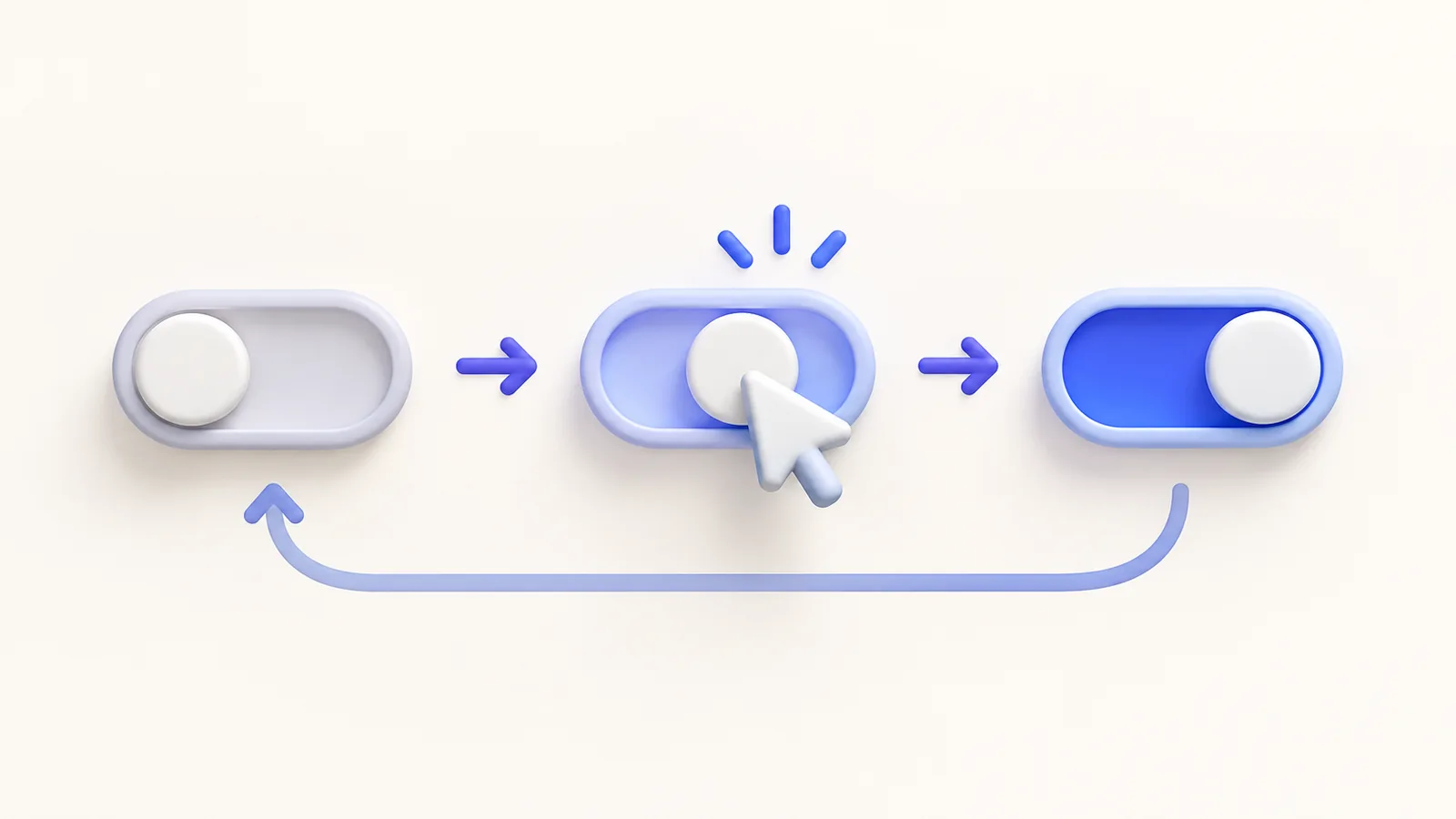
Begin with a clear before-state and a brief opportunity to orient. Move directly to the control, perform the action, and hold the changed state long enough to understand it. The loop should not reset before the learner sees what happened. Watch several repetitions yourself; an abrupt reset can look like an error rather than the beginning of another demonstration.
Keep attention tools restrained. A small cursor emphasis or appropriate framing may help; repeated zooms and decorative motion can compete with the instruction. ScreenTale’s editable capture workflow lets you shape presentation before export. Review the final composition instead of assuming the effect that helped a narrated video also helps a small silent loop.
Export and measure the actual file
ScreenTale supports GIF export as well as MP4 and MOV. Test a short candidate at the size required by the documentation page. Check interface text, cursor movement, gradients, and the final state. A GIF does not carry your spoken explanation, so place essential information in adjacent text. Make sure the reader can understand the change even if animation is unavailable.
Compare file size and playback with a short video version. Do not assume an animated image is always smaller or more efficient. If the loop becomes large, shorten the action or choose video with controls. The file-size guide covers the broader delivery decision. Keep the project so you can update the visual when the interface changes without starting from an old compressed output.
Respect readers who need motion control
Continuous motion beside text can distract readers. W3C’s explanation of Pause, Stop, Hide addresses automatically moving content that continues beyond five seconds alongside other content. Consider the whole repeating animation rather than treating each brief loop as a fresh exemption. Provide suitable controls in the publishing surface or choose a static sequence or a user-played video.
Add a meaningful description and keep the written instructions complete. A static image of the result can be a useful fallback, especially where the documentation system does not expose animation controls. Recheck the embedded visual after publishing: width, file loading, and motion behavior belong to the destination. The accessibility reference was checked on 5 October 2026; this workflow is not a claim that a GIF alone establishes accessibility compliance.
Accessibility reference checked on 5 October 2026
Show one change clearly. Try ScreenTale and build a small documentation visual with an equally useful written explanation.


0 comments
Comments are currently closed for this article.