
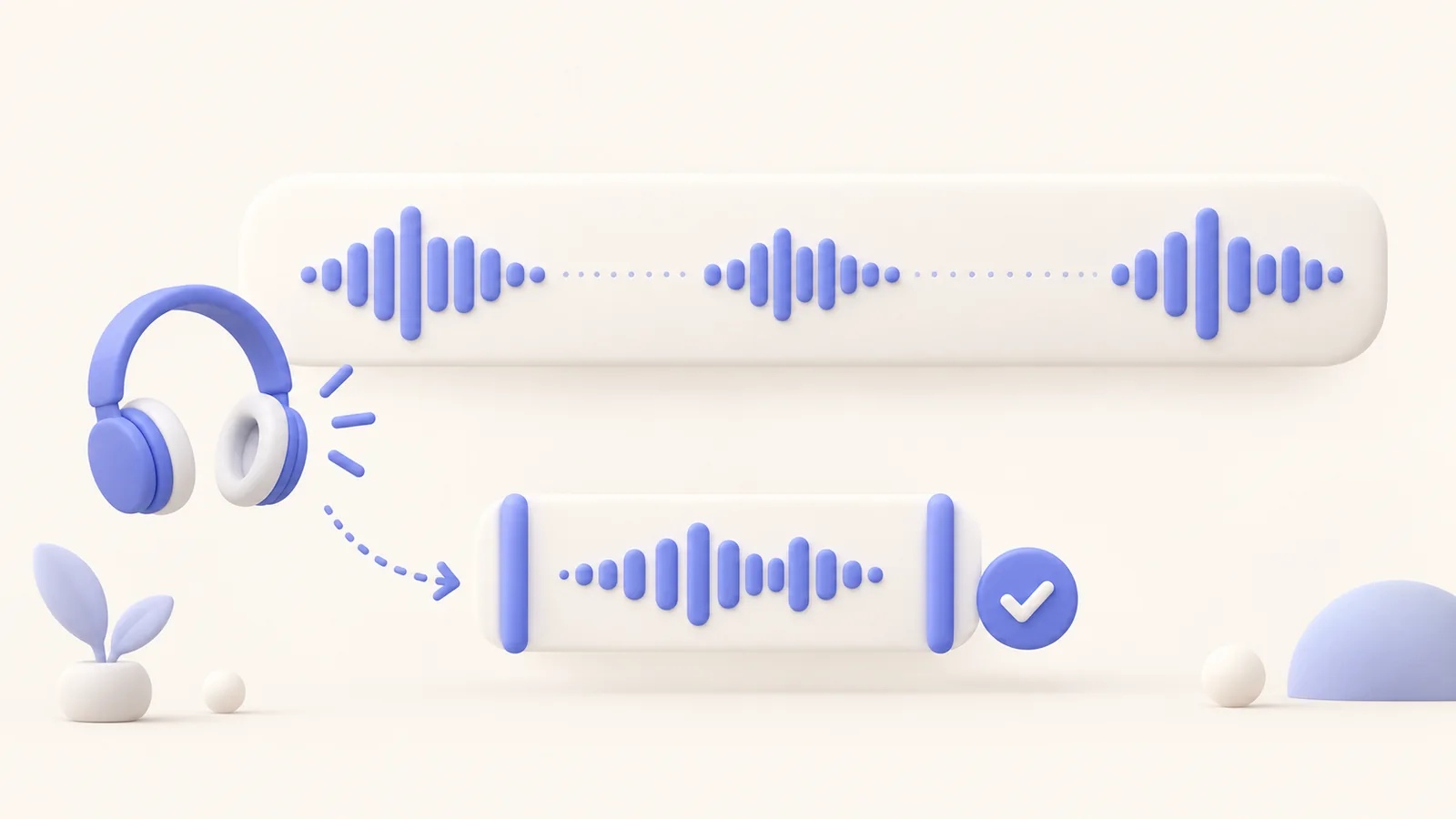
The lesson sounds fast after you remove every quiet moment, but the learner cannot finish reading the result before the next click. To remove silence from screen recordings well, separate waiting from thinking time. ScreenTale can suggest pause cuts for review; you listen and choose the ones to apply across the timeline. The goal is a clearer pace, not a video with no breathing room.
Make each cut earn its place
- Remove abandoned takes and unhelpful waiting before useful teaching pauses.
- Audition proposed cuts and protect the beginning and end of each word.
- Keep screen, camera, and audio aligned after an approved cut.
- Review zoom, annotations, privacy regions, and captions after timing changes.
Decide why you want to remove silence from screen recordings
List the kinds of gap in the lesson. A loading wait, a search for the next tab, a breath, and time for reading a result are not the same. The first two often add little value; the latter two may make the explanation easier to follow. Write a pacing rule for this lesson before applying suggested cuts to many places.
For example, keep a pause after a changed setting so the learner can compare the result, but shorten the empty wait before an already prepared window opens. If a loading delay is relevant to the behavior you are teaching, explain it rather than disguising it. Editing should improve comprehension without falsely implying that a slow operation completed instantly.
Listen to the cut boundaries
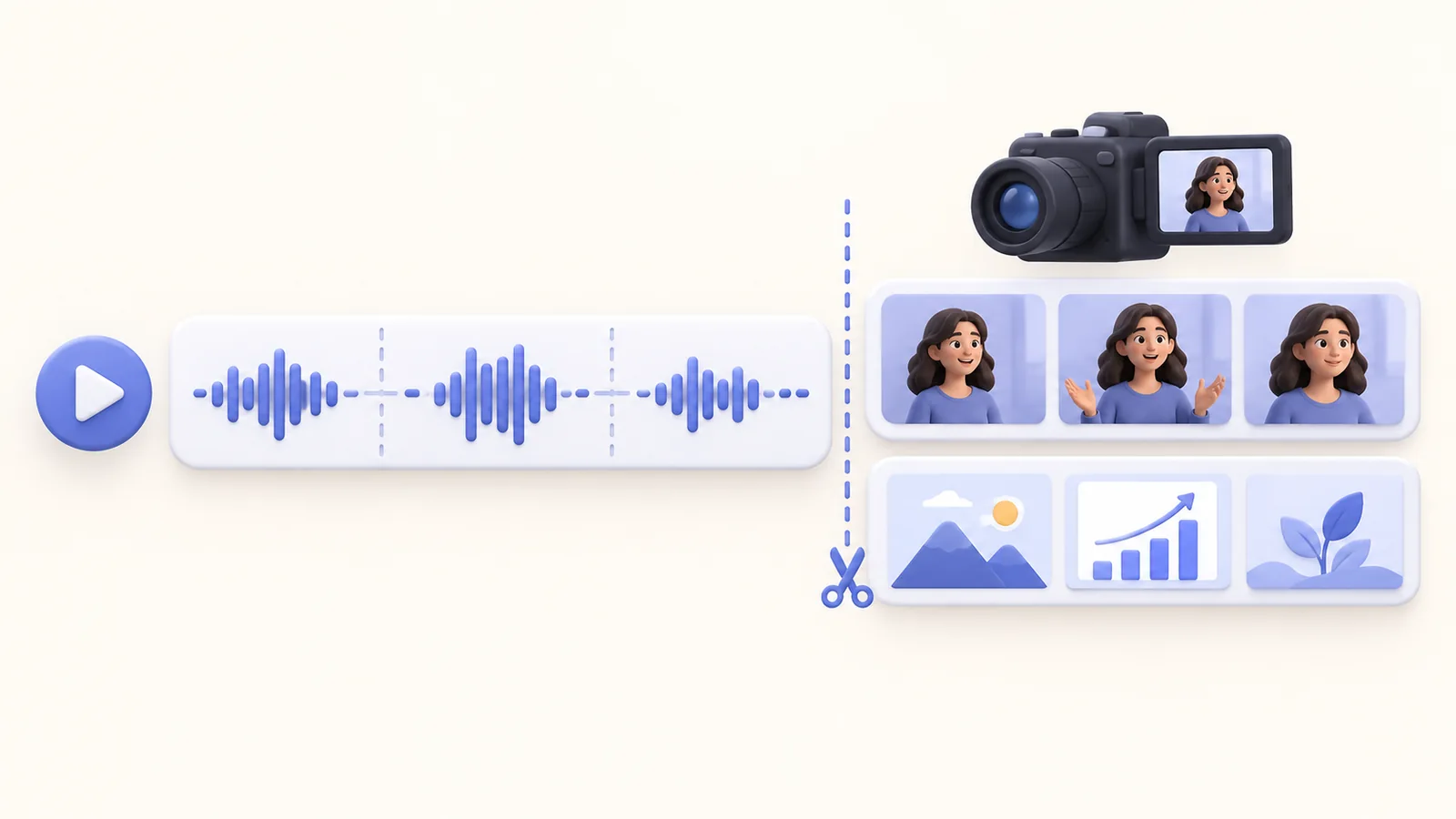
ScreenTale’s shorten-silences workflow lets you listen to suggested pause cuts and apply the ones you choose across the timeline. Treat the suggestions as candidates. Play the words before and after a gap, then listen again with the proposed shortening. A visible quiet waveform is useful guidance, but your ears decide whether the sentence survives.
Protect soft consonants, breaths that belong to speech, and the end of a word that fades out. Listen for a jarring join or a change in room sound. Do not apply a universal duration simply because it made one sentence sound good. Different speakers and explanations need different room to breathe. If a join sounds artificial, keep more of the original gap.
Check synchronized action after each group of cuts
A spoken reference must still match its screen action. Watch the cursor move when the instruction names the button, then check the camera moment and audio response. Apply timing changes consistently to the relevant layers. A cleaner waveform is not enough if the speaker now describes something that happens several moments earlier or later in the picture.
Review the effects around edited boundaries: zoom, annotation, privacy cover, and subtitle timing. These layers communicate at particular moments, so the changed scene must still make sense. If you already have captions, reread them after the cuts. Keep your editable project so you can revise a pacing decision without replacing the original source recording.
Judge the lesson at normal playback speed
Watch the complete explanation without pausing to congratulate each tidy cut. Can someone unfamiliar with the interface find the control, read the changed value, and understand the next action? A sequence that looks efficient on the timeline may feel tiring in real playback. Restore a useful pause wherever attention needs time to catch up with narration.
Export a short representative section and listen in a normal player, then review the full output once the pacing works. For a broader preparation plan, see the online-course recording guide. There is no promised percentage reduction or automatic teaching improvement here. Good silence editing removes needless delay while keeping the learner oriented throughout the lesson.
Listen before applying. Try ScreenTale on one short lesson and keep only the pause cuts that make it easier to follow.



0 comments
Comments are currently closed for this article.