
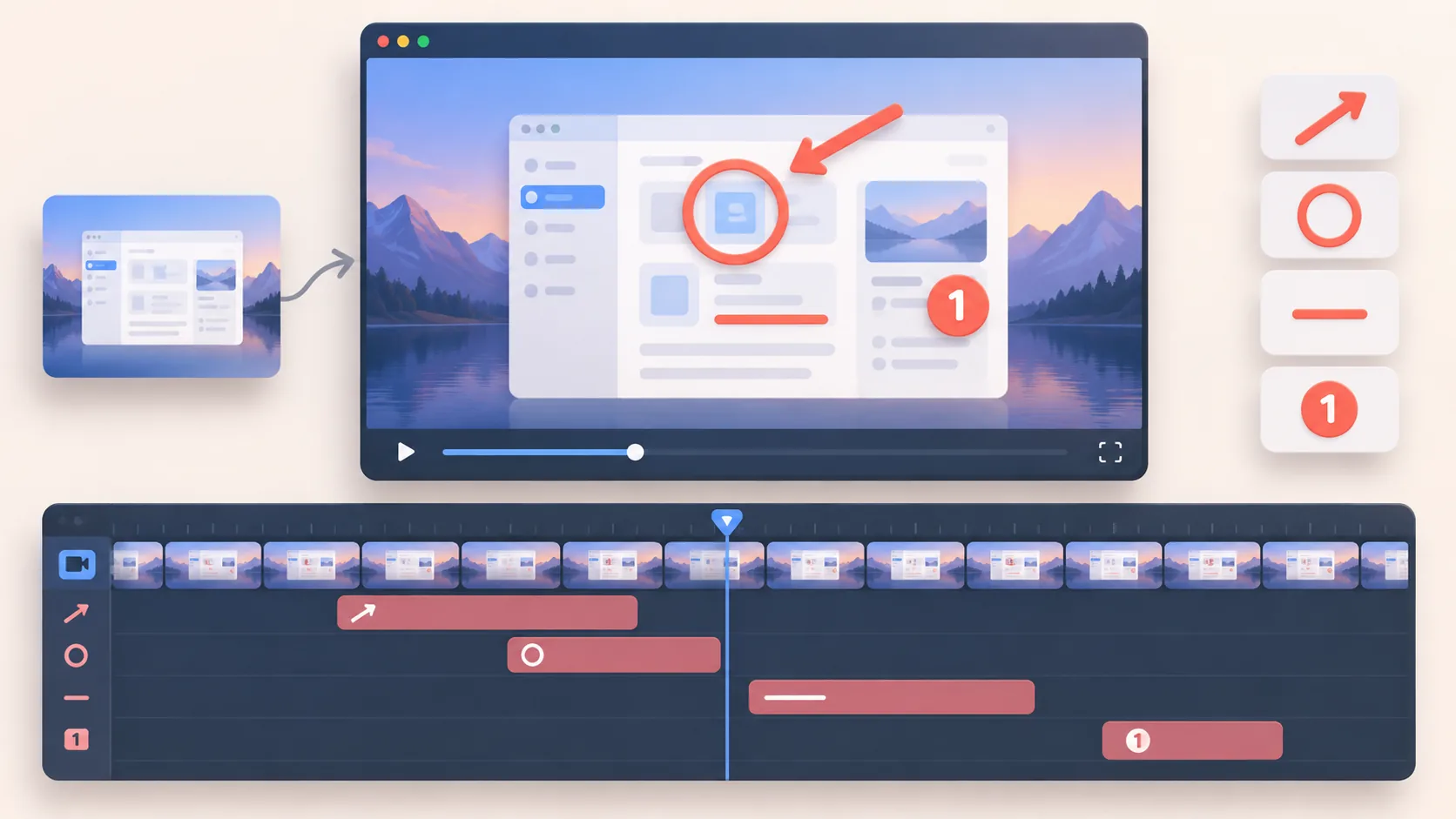
Annotations help when a viewer must notice a small state, remember a sequence, or connect narration to one precise control. They hurt when every click receives an arrow, circle, label, and sound. The advantage of adding annotations after capture is judgment: you can see the complete scene, choose the exact timing, and remove marks that compete with cursor, zoom, captions, or camera.
Use the lightest signal that works
- Begin with framing, zoom, cursor, and narration.
- Use arrows for direction, rings for location, and short labels for meaning.
- Bring each mark in slightly before it is needed and remove it after the point lands.
- Keep annotation style, color, and motion consistent across the video.
1. Identify the moments that remain unclear
Watch the rough edit without adding marks. Note only moments where the intended target is ambiguous, too small, visually similar to its neighbors, or separated from the narration. If a simple crop, zoom, slower cursor, cleaner pacing, or stronger sentence solves the problem, use that first. An annotation should carry meaning that the existing signals cannot.
Group candidates by purpose: point to a control, highlight a changed state, trace direction, compare two areas, or label a concept not written in the interface. This prevents choosing shapes by decoration. It also reveals repeated confusion that may be better solved by restructuring the scene rather than adding more marks.

2. Match each annotation to one job
Use an arrow to connect attention with a destination, a ring or box to isolate a location, an underline to reinforce a short text region, and a numbered marker for a real sequence. Keep labels brief and place detailed explanation in narration or supporting text. Avoid pointing at the cursor while the cursor already points clearly.
Choose one accent color with sufficient contrast against every state it crosses. Add a subtle backing when necessary instead of using several bright colors. Keep line weight, corner style, typography, and entrance motion consistent. The viewer should recognize annotations as one visual language and spend attention on their meaning.
3. Time the mark around the explanation
Introduce an annotation just before the spoken reference so the viewer can find the target, keep it through the relevant action, and remove it once attention can return to the whole interface. A mark that arrives late confirms something the viewer already missed. One that remains too long becomes clutter and may imply the target is still important.
Do not animate every annotation dramatically. A short fade, draw, or scale can establish arrival; repeated bouncing competes with content. When several steps occur, show one marker at a time or build a stable numbered sequence. Respect reduced-motion needs by relying on position, shape, and contrast rather than rapid movement alone.
4. Review annotations with every other layer
Check marks at normal playback speed, paused, and at mobile size. Confirm they do not cover captions, camera, cursor, code, or controls. Watch transitions after later trims because timing can drift. Remove redundant marks and verify labels remain readable after compression. The cleanest annotation is often the one you decide not to add.
ScreenTale keeps annotations editable after capture together with zoom, cursor, framing, background, camera, keystrokes, and audio. That makes the hierarchy reviewable instead of permanent. Export a representative section first, then apply the established style to the rest of the project only after it survives real playback.
Point once, then get out of the way. Try ScreenTale and add one useful annotation after the story is already clear.



0 comments
Comments are currently closed for this article.