
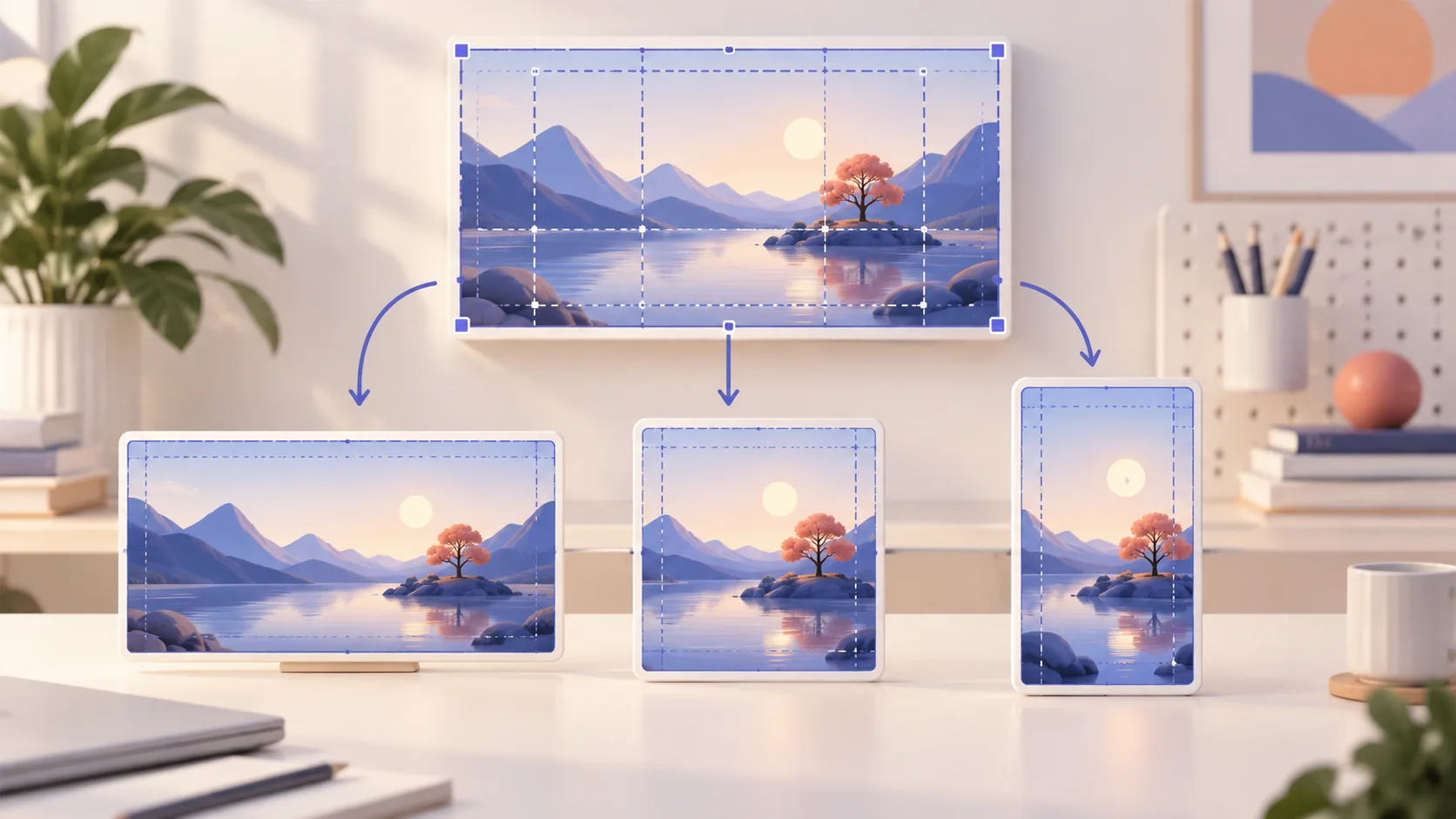
Aspect ratio is not a cosmetic export choice. It decides how much interface remains readable, where camera and captions can live, and whether one recording can become several useful outputs. The safest screen recording aspect ratio is the one chosen for the primary destination before capture, with enough safe space to adapt important moments later.
Choose by destination
- Use 16:9 for YouTube, courses, presentations, and most desktop tutorials.
- Use 1:1 for compact feed posts with a simple central action.
- Use 9:16 for short vertical stories redesigned around one narrow focus.
- Keep controls, cursor actions, camera, and captions inside a reusable safe area.
16:9 preserves desktop context
Landscape 16:9 naturally fits most Mac displays and video players. It preserves sidebars, timelines, browser chrome, and relationships between panels, making it the reliable default for long tutorials, product demos, courses, and documentation. It also leaves room for a small camera or captions without immediately covering the application.
Do not assume the full display should fill every pixel. A selected window inside a 16:9 canvas can be more readable than a wide desktop with tiny text. Resize the source, collapse irrelevant panels, and add modest padding. The viewer needs the meaningful relationship between elements, not proof that every monitor pixel was captured.
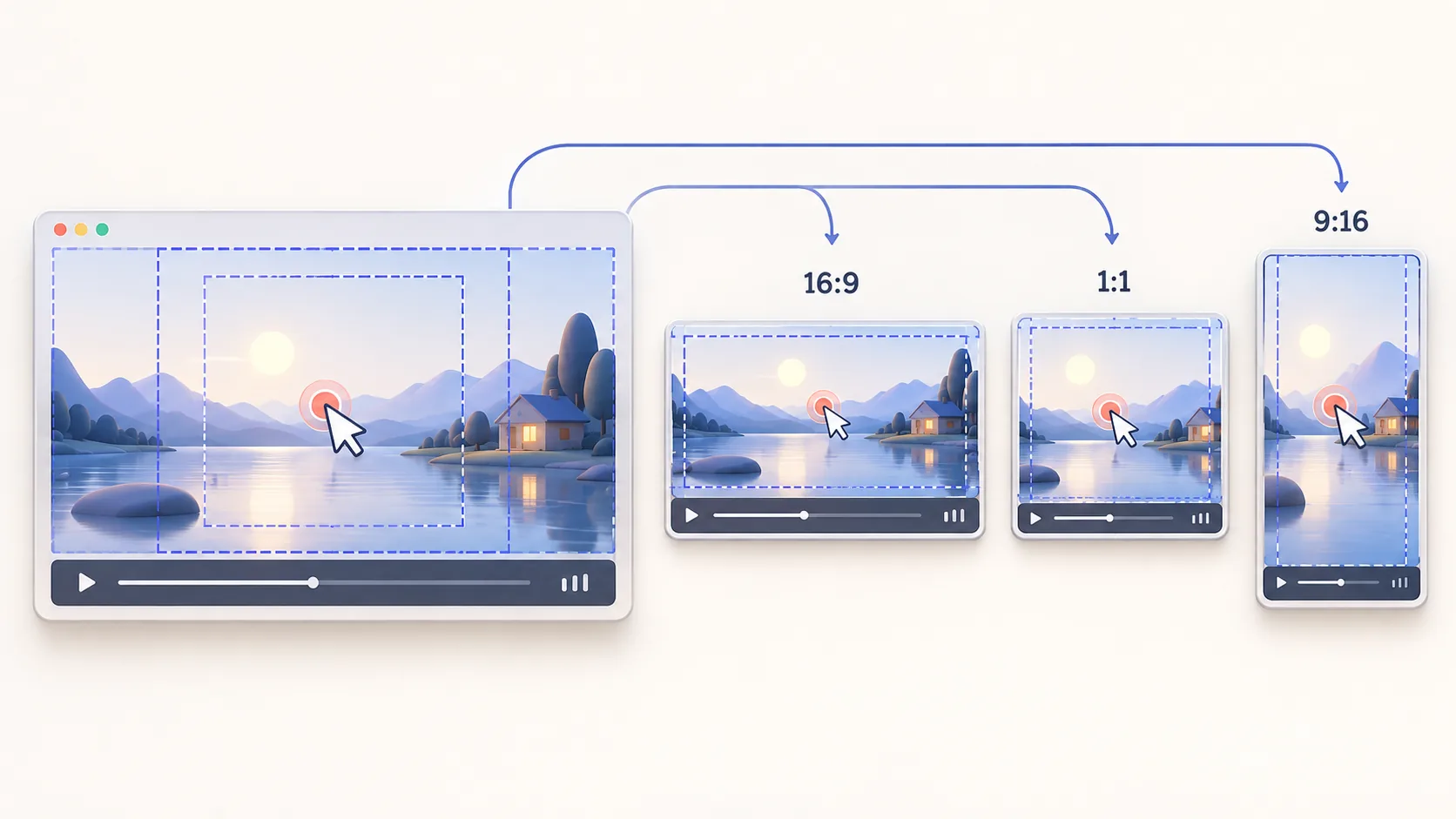
1:1 works when the action is already compact
Square video fits some social feeds and embedded cards, but it removes width quickly. It works best with one centered window, a single dialog, a short before-and-after, or a close product interaction. Dense editors, wide spreadsheets, code with long lines, and multi-column dashboards usually become unreadable or require aggressive reframing.
Design the square version as its own composition. Move camera above or below the source, increase text size, and use fewer simultaneous panels. Do not simply crop equal amounts from a finished landscape video and hope the cursor remains visible. Review every important action inside the square safe area.
9:16 needs a vertical story, not a narrow crop
Vertical video offers very little horizontal space for desktop software. Choose one control, one result, or one sequence at a time. Zoom and reframe between beats, hide sidebars that are not being discussed, and keep captions clear of platform controls. A complete desktop tour rarely survives as one readable vertical frame.
Record at enough resolution to reframe without destroying clarity, but remember that resolution cannot rescue a cluttered composition. If the primary lesson is long and wide, create the 16:9 master first and select one self-contained moment for the vertical version. Short-form output should make one promise rather than summarize every chapter.
Build one source around shared safe areas
Keep the main app action near the center when you know several formats are required. Avoid placing essential controls at extreme edges. Record camera separately or as an editable layer, and leave caption space. Test landscape, square, and vertical crops early with a ten-second section before producing the complete lesson.
ScreenTale lets you adjust canvas, framing, background, zoom, cursor, and camera after capture, so one project can support several compositions. Still, each output deserves a full review at its real display size. Check text, cursor, captions, camera collisions, and pacing; adaptation is an edit, not only a changed export setting.
Choose the master before the crop. Try ScreenTale and test one ten-second scene in every required ratio.


0 comments
Comments are currently closed for this article.