
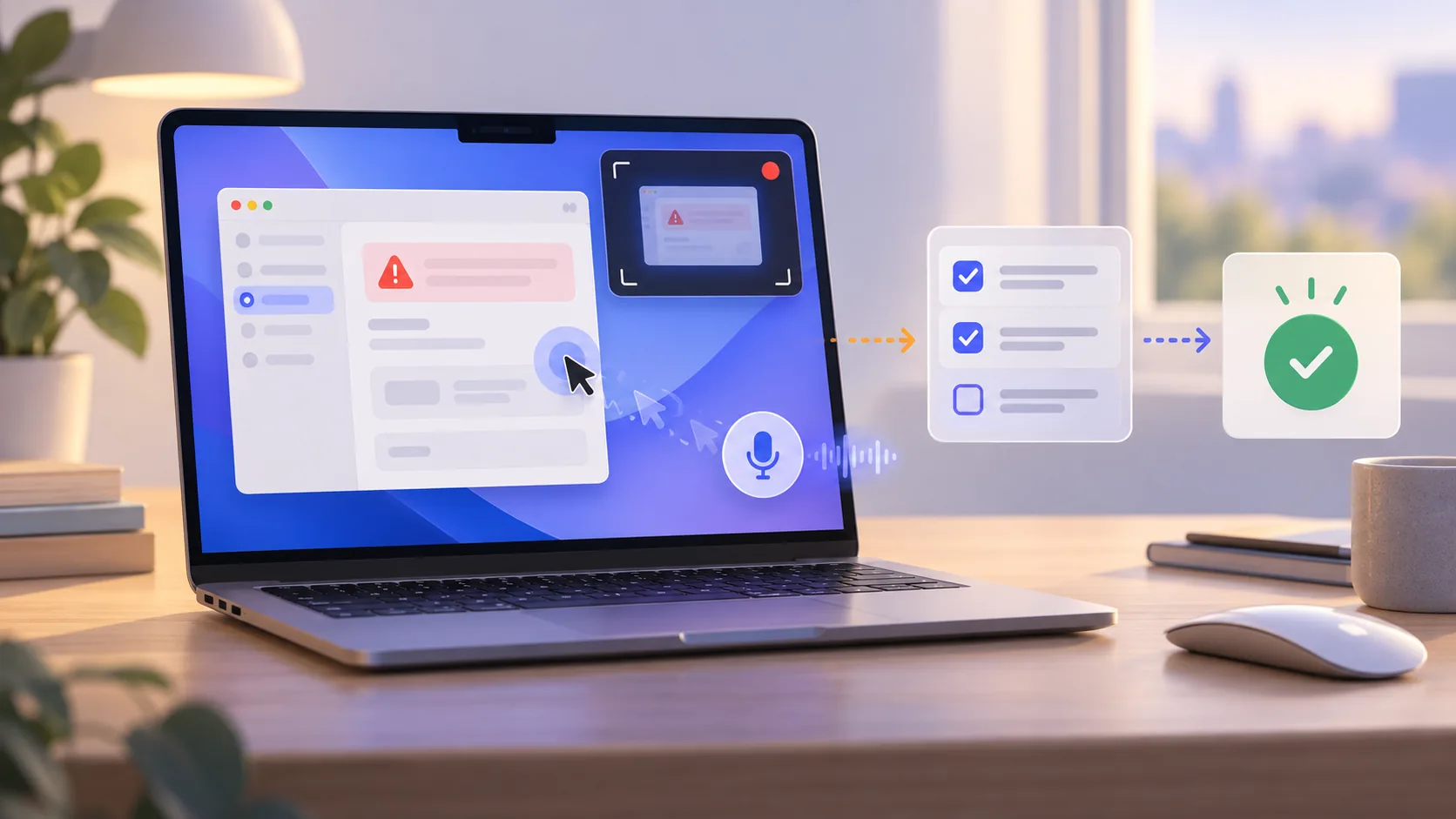
A screen recording can make a bug obvious, but only if another person can reconstruct what happened. A long video that begins after the important setup, hides the pointer, and omits the build or environment still creates guesswork. To record a bug report on Mac well, capture evidence in a fixed order: starting state, exact action, visible failure, expected behavior, and the smallest safe context needed to reproduce it.
What every useful bug recording includes
- A clean starting state and the shortest repeatable path.
- Visible cursor action plus calm narration of expected and actual behavior.
- App version, macOS version, input conditions, and frequency in the written report.
- No customer data, credentials, tokens, internal URLs, or unrelated windows.
1. Prove the bug before recording it
Reproduce the issue twice without the recorder. Write the shortest sequence that still fails and note whether it happens every time, intermittently, or only after a restart, permission change, network condition, or specific file. This protects the video from becoming an improvised investigation where the critical precondition disappears among unrelated clicks.
Reset to a known starting state before each attempt. If the issue depends on data, create a minimal synthetic fixture that behaves the same way. Record the build number, macOS version, hardware architecture, account type, permissions, and input device separately in text. Searchable environment facts belong in the report even when they also appear briefly on screen.
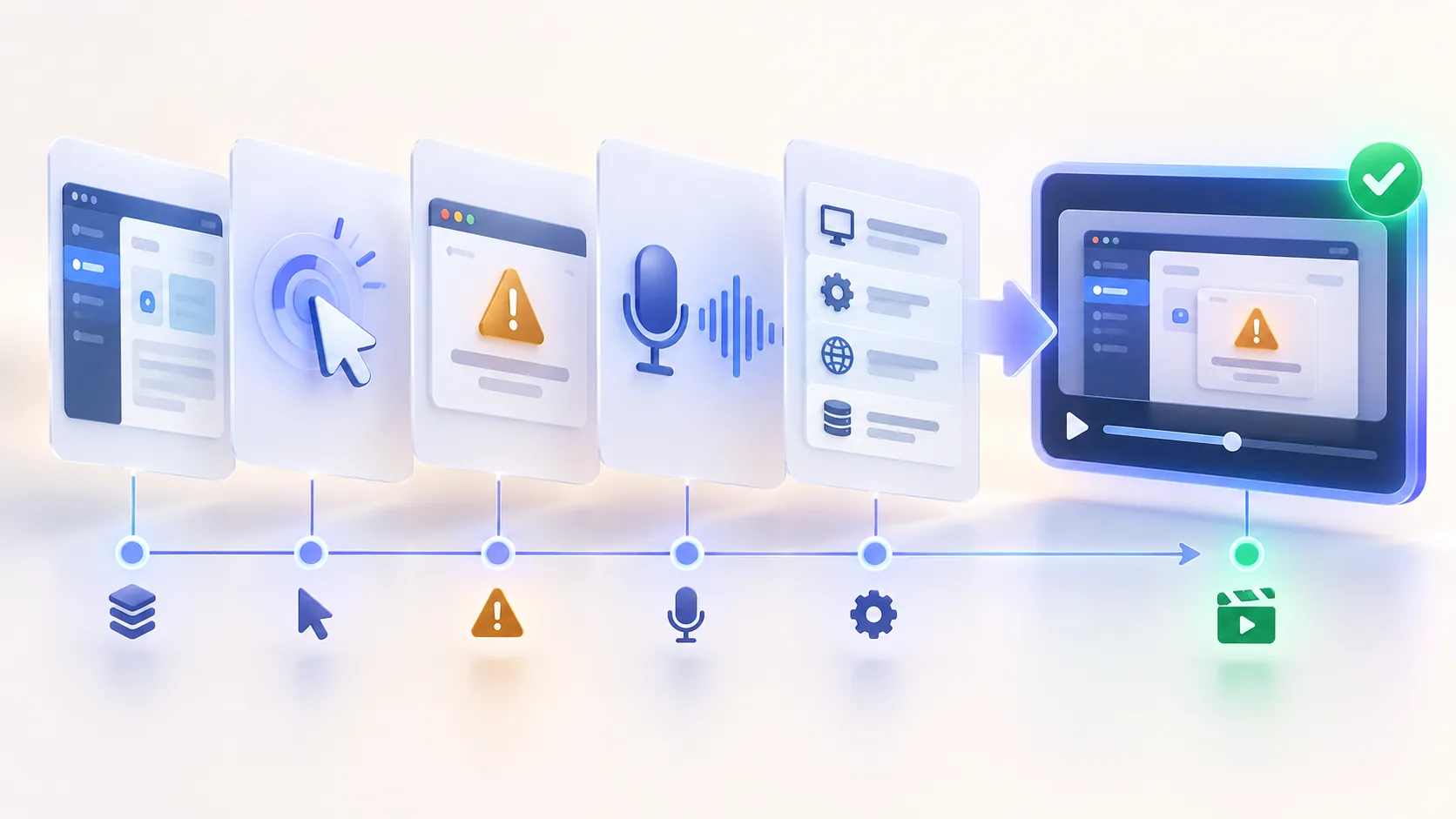
2. Capture the smallest safe surface
Prefer one application or window over the entire display. Close password managers, chat, email, dashboards, terminals with tokens, and real customer records. Turn off notifications and use a sample account. If the bug itself involves a private value, replace it with synthetic data that preserves type, length, and behavior rather than blurring it after the fact.
Show enough surrounding interface to establish location. A crop so tight that nobody knows which dialog or state is open can be as unhelpful as a full desktop. Run a short test to confirm pointer visibility, text size, microphone clarity, and whether system audio matters. Do not record audio merely because the option exists; include it when a sound is part of the failure.
3. Narrate expected behavior before the failure
Begin with one sentence: “Starting from this state, I expect X; after Y, Z happens instead.” Then perform the steps at a normal pace. Pause before the failing action, name it, click once, and let the result remain visible. Avoid circling the cursor continuously or repeating the same failure unless the second run proves intermittency.
When timing matters, say what you are waiting for and preserve enough real time to show the delay. When a shortcut matters, display only the relevant combination. When input method matters, state it in the report. Your voice should explain intent and expectation; the screen should provide the direct evidence. Together they reduce interpretation without turning the clip into a meeting.
4. Edit for diagnosis and attach the written context
Trim setup that does not affect reproduction, but keep the transition into the failure intact. Add one zoom or annotation only when a status change is too small to notice at normal playback. Do not cut around waits, error transitions, or evidence that changes the apparent timing. The goal is a truthful diagnostic artifact, not a dramatic highlight reel.
ScreenTale lets developers refine cursor, zoom, keystrokes, annotations, framing, and audio after capture while keeping the source project local. Export the clip, watch it once without your memory of the bug, and attach the exact steps, expected result, actual result, environment, frequency, and logs separately. Video shows behavior; text makes the report searchable and actionable.
Make the failure repeatable, not theatrical. Use ScreenTale to record one safe, focused bug report and keep its evidence editable.



0 comments
Comments are currently closed for this article.