
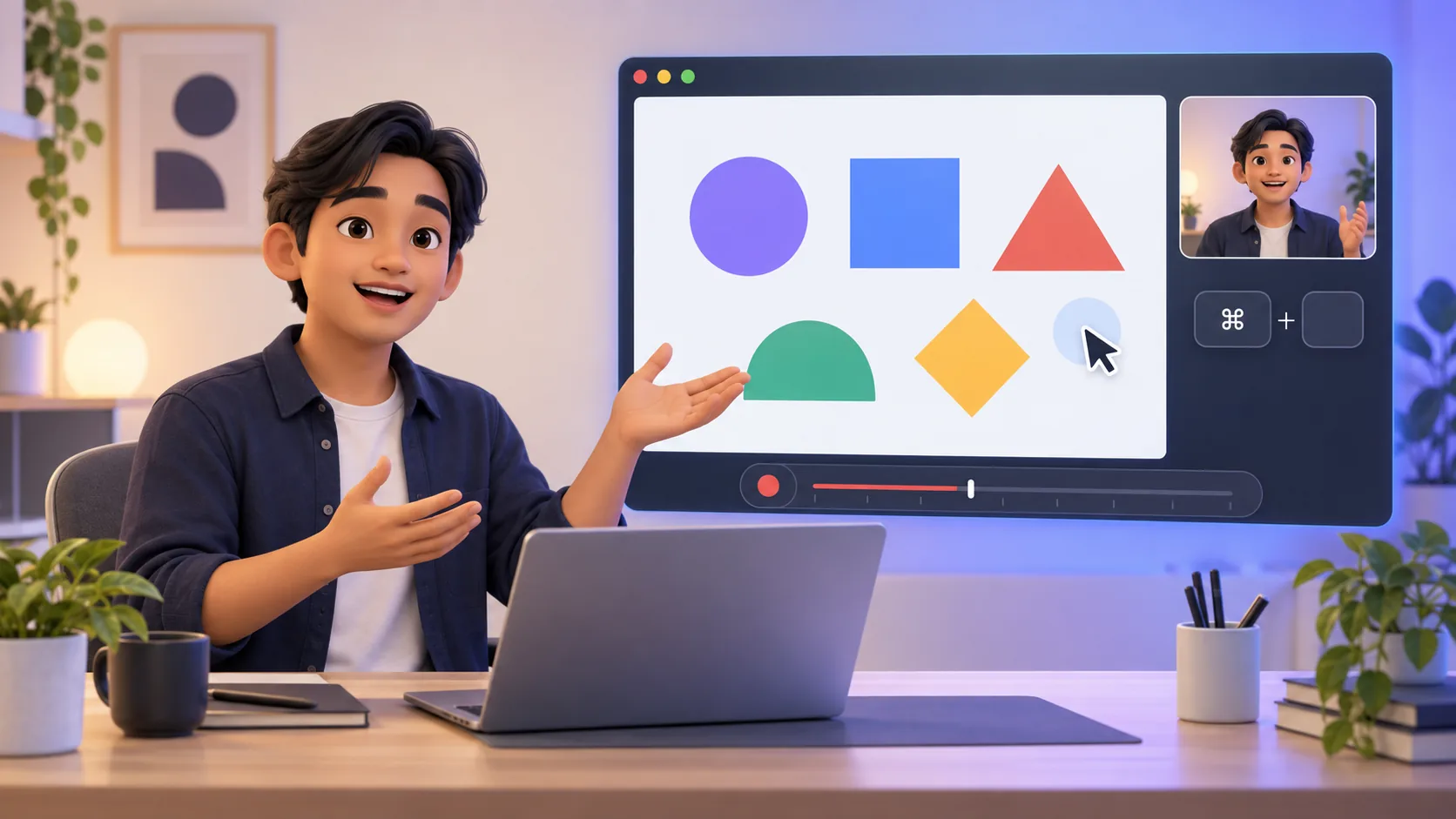
The fastest way to record an online course on Mac is not speaking faster or buying more equipment. It is designing each lesson so one mistake does not invalidate everything around it. Short, meaningful sections make recording calmer today and course updates far cheaper next year.
The course workflow at a glance
- Plan one outcome per lesson and one idea per recording section.
- Test narration, system audio, text size, and camera framing before the long take.
- Keep screen, camera, zoom, cursor, keystrokes, and audio adjustable after capture.
- Archive the editable project with the published lesson so future updates replace only what changed.
1. Turn the curriculum into small promises
A course module can be broad; a lesson should make one clear promise. Instead of “Introduction to databases,” try “Create a table, insert one record, and explain the primary key.” The narrower promise tells students what success looks like and tells you what does not belong in the recording.
Break that lesson into sections such as result preview, concept, setup, demonstration, common mistake, recap, and exercise. Each section should stand on its own long enough to cut or replace. A short pause between sections gives the timeline a clean editing point.
2. Prepare for the smallest safe capture
Decide whether students need the whole display, one app, one window, or a custom area. Smaller capture targets reduce clutter and privacy risk, but confirm that menus and dialogs remain inside the frame. Use sample accounts and synthetic data, close messages, and enable Focus mode.
Set application text larger than your personal preference. Course video is compressed, embedded in a player, and often watched on a laptop beside notes. If a student has to switch to full screen for every command, the interface is too small.
3. Record an online course on Mac with clean sound
Consistent narration matters more than an expensive camera. Keep the microphone position fixed, reduce room noise, and record a ten-second test at normal teaching volume. If the lesson includes application sound, use headphones and make the loudest example play under your voice during the test.
ScreenTale can capture microphone and system audio with the screen, then let you balance the sources in the editor. That flexibility repairs level differences; it cannot remove every echo or restore words spoken away from the microphone. Improve the room first, then the mix.
4. Use camera, cursor, and keystrokes with a teaching purpose
Camera is valuable when welcoming students, setting expectations, or summarizing a difficult idea. During detailed software steps, it may only cover useful pixels. Because ScreenTale keeps camera placement and visibility editable, you can record once and let each section choose the right emphasis.
Cursor emphasis and zoom should reveal the active control without chasing every movement. Keystroke overlays help when a shortcut is part of the lesson; otherwise they add noise and risk exposing typed input. They are off by default, and you should still inspect every enabled overlay before publishing.
5. Edit for comprehension, not only for speed
Remove accidental waits and repeated takes, but preserve the pause a learner needs to read a command or predict the next step. Speed up a long installation when nothing changes conceptually. Slow down around a new mental model. Good pacing follows cognitive load, not a target runtime.
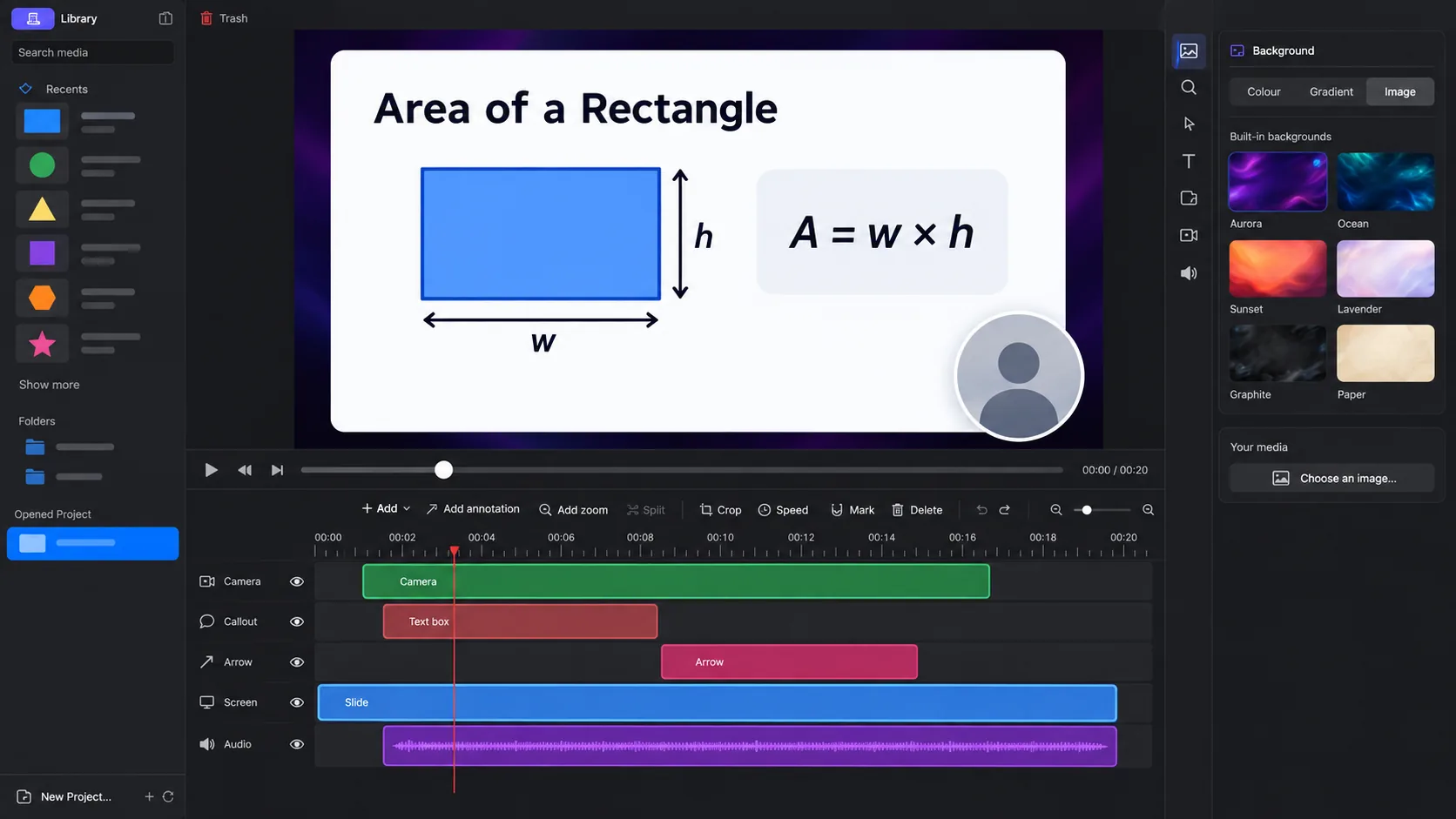
Add marks at section boundaries, split mistakes, balance audio, and lock the lesson structure before polishing background, framing, camera, cursor, and zoom. Watch the export once as a student with no access to your notes. Every unexplained jump is a place to add context or simplify.
6. Store the project as part of the course source
Published video is an output, not the only source. Keep the lesson outline, sample files, asset licenses, final export settings, and editable .screentale project together. Record software versions and the publication date. When an interface changes, this package tells you exactly what must be replaced.
Update a section instead of re-performing the whole lesson. ScreenTale’s teacher workflow is built around reopenable projects and adjustable presentation layers. The result is not only fewer re-takes during production; it is a course you can maintain.
Start with one lesson, not the whole course. Use the 30-day ScreenTale Launch Pass and take one short lesson from outline to export.


0 comments
Comments are currently closed for this article.